Services Catalog
Browse your clinic's service packages, create new ones, and configure how your services are presented — all from the Services page.
The Services page is your clinic's catalog — every treatment package you offer lives here, along with the tools to create new packages and configure how your services work.
Where to find it
In the sidebar, open the CLINIC group and select Services. The page shows the four catalog tabs, a Search packages box, a Create Package button, a Share button, and a Settings link next to the Services heading.
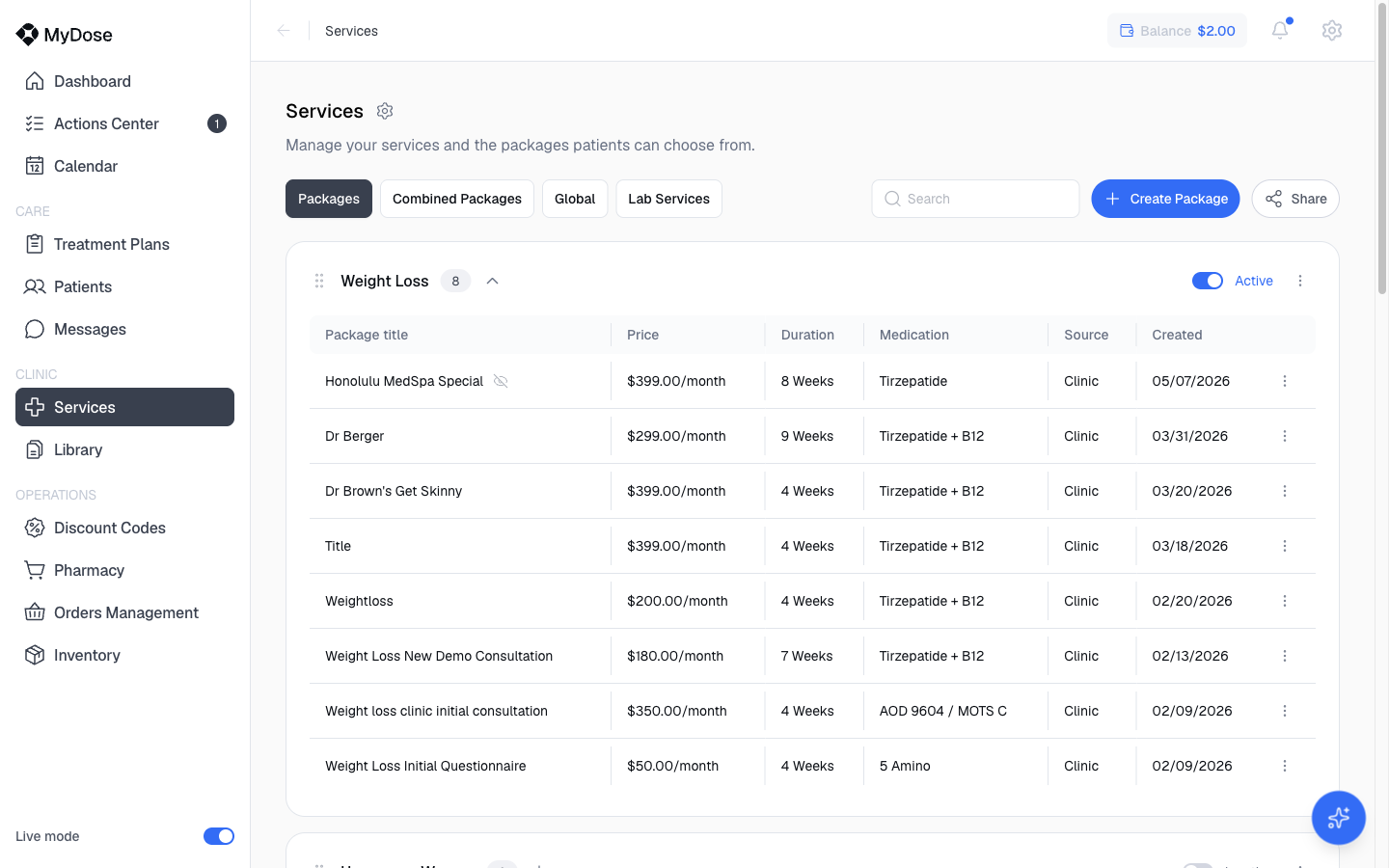
The four tabs
| Tab | What it holds |
|---|---|
| Packages | Your clinic's packages, grouped by category. |
| Combined Packages | Your clinic's combined packages. |
| Global | Global services. |
| Lab Services | Lab services. |
Most day-to-day work happens on the Packages tab.
Read the Packages tab
Packages are grouped into collapsible category sections. Each section has a category toggle and a Package type options menu, and each package row has its own Package options menu.
Every row shows:
| Column | What it shows |
|---|---|
| Package title | The package's name |
| Price | The package price, e.g. $299.00/month |
| Duration | The treatment length, e.g. 8 Weeks |
| Medication | The medication included in the package |
| Source | Where the package came from, e.g. Clinic |
| Created date | The date the package was created |
Watch for two indicators on package rows: a Hidden from patients badge on packages patients can't see, and a Medication unavailable warning icon that appears when a package's medication is no longer available.
Create a package
The New Package chooser offers three package types.
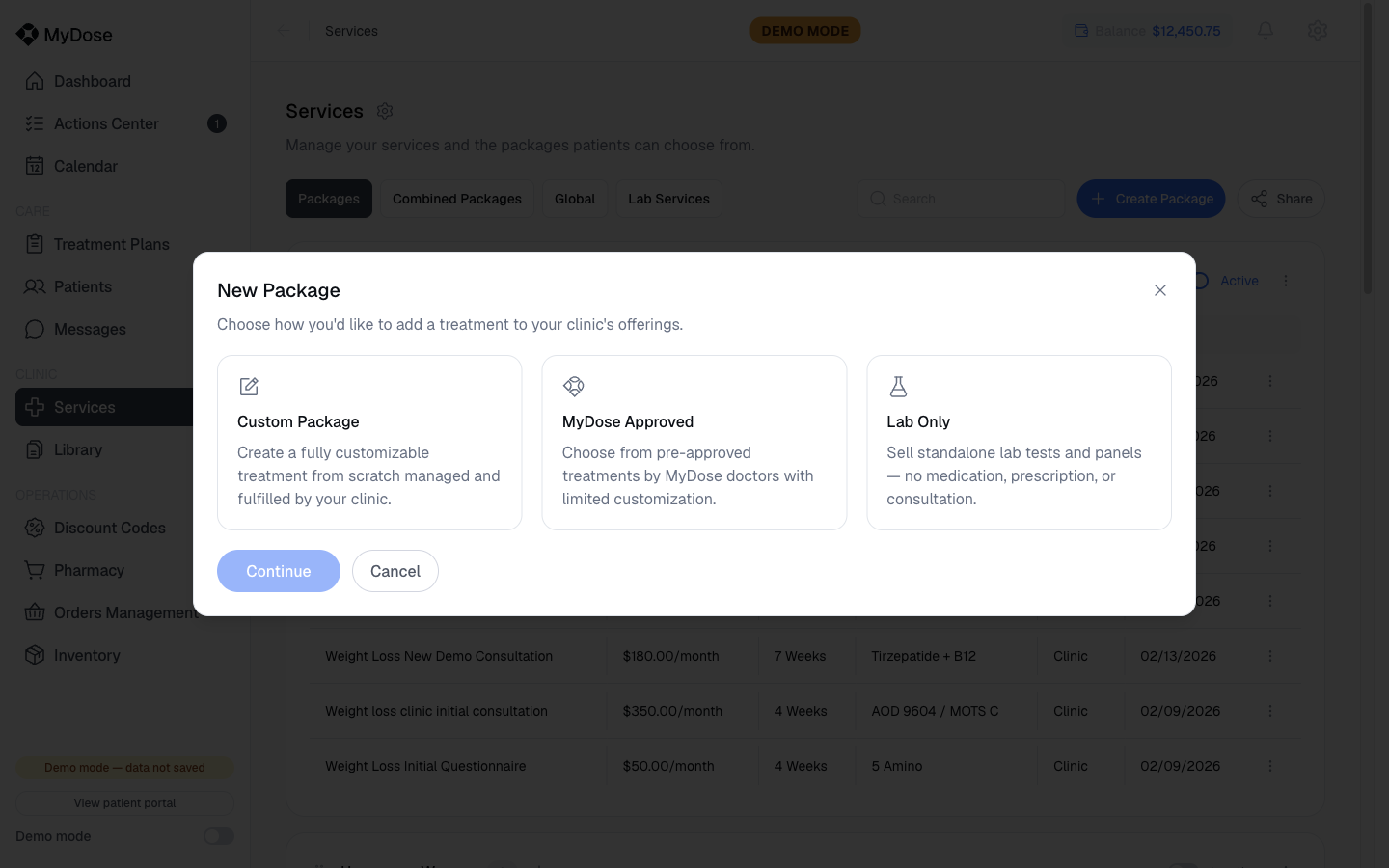
Select Create Package
On the Services page, select Create Package. The New Package chooser opens.
Choose a package type
Pick one of the three options:
- Custom Package — "Create a fully customizable treatment from scratch managed and fulfilled by your clinic."
- MyDose Approved — "Choose from pre-approved treatments by MyDose doctors with limited customization."
- Lab Only — "Sell standalone lab tests and panels — no medication, prescription, or consultation."
Select Continue
Select Continue to start the flow you chose, or Cancel to close the chooser. For the full walkthroughs, see Create a Service Package for the Custom flow and MyDose Approved for pre-approved treatments.
Configure services
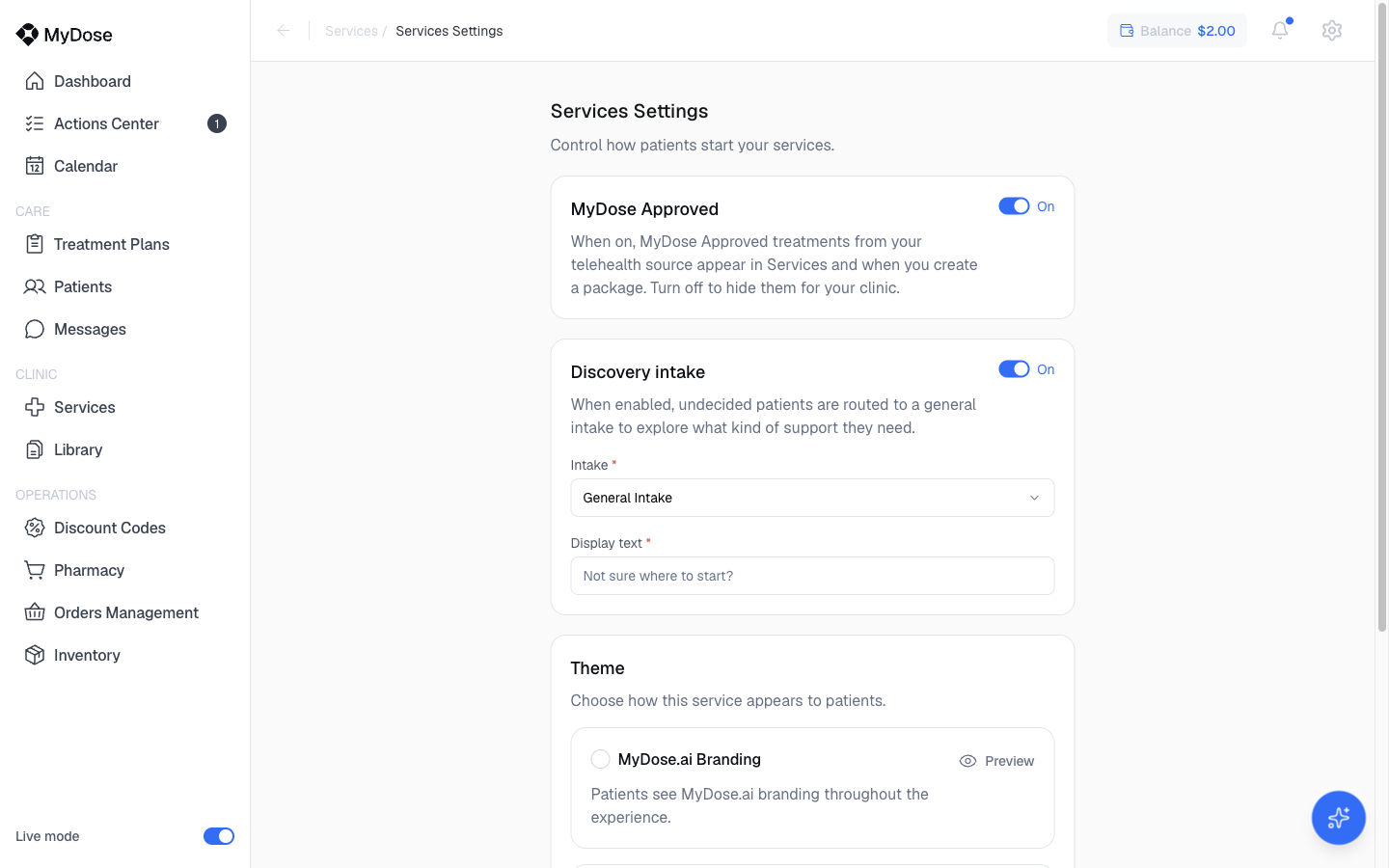
The Settings link on the Services page opens Services Settings, where you control how your catalog behaves and looks.
Open Services Settings
Select the Settings link at the top of the Services page.
Adjust your options
- MyDose Approved — toggle MyDose Approved treatments on or off.
- Discovery intake — toggle the discovery intake and pick which intake form it uses (for example, General Intake). A Not sure where to start? entry point is available if you need a starting point.
- Theme — choose MyDose.ai Branding, Basic Branding, or Clinic Branding. Each option has a Preview button so you can see it before committing.
Save
Select Save Settings to apply your changes.
Related
Create a Service Package
Build a fully custom package step by step — basics, visit requirements, medication, treatment schedule, and pricing.
MyDose Approved
Offer pre-approved treatments from MyDose doctors with limited customization.
Assign a Package
Put a package to work by assigning it to a patient.
Library
Manage patient-facing documents and review your clinic's intake forms.