Message Patients
Read and reply to patient conversations, start new chats, and message directly from a patient's profile in the MyDose clinic portal.
Keep patient communication in one place — the Messages inbox holds every conversation between your clinic and your patients, and you can also chat inline from a patient's profile.
Where to find it
Select Messages in the sidebar (under the CARE group) to open your inbox. Each conversation shows the patient's name, the day of the last message, and a preview — when the last message was yours, the preview is prefixed with You:.
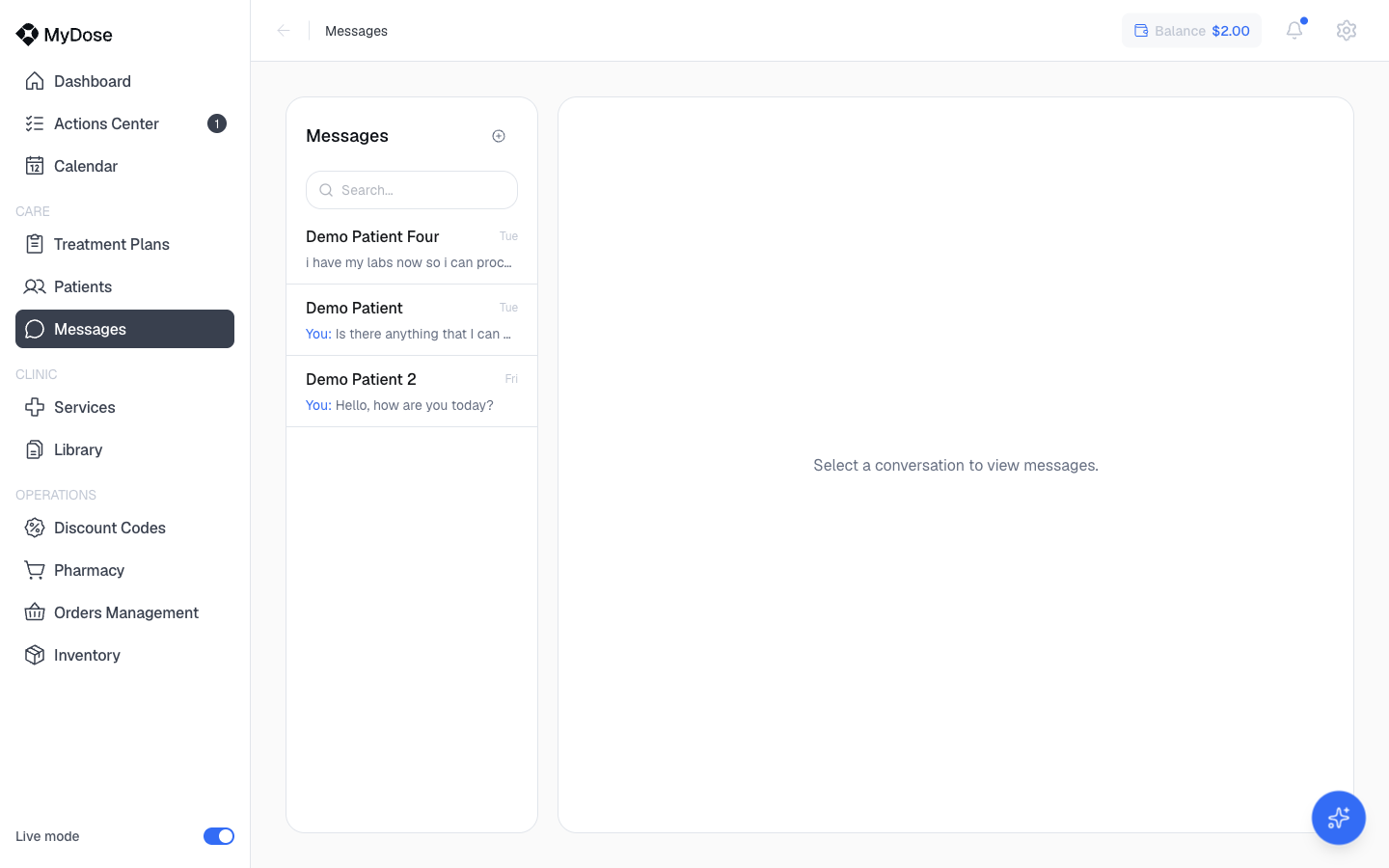
Messaging overview
The Messages page has two parts:
- The inbox — a searchable list of conversations. Use the Search conversations box to find a patient's thread, and select New chat to start a new one.
- The thread view — the open conversation. It has two tabs, Messages (the message history) and Files & Media (attachments shared in the conversation), plus a Conversation options menu, an Attach image or PDF button, and a Write message box with Send.
| Control | What it does |
|---|---|
| New chat | Starts a new conversation with a patient |
| Search conversations | Filters the inbox by patient |
| Messages tab | Shows the full message history for the open thread |
| Files & Media tab | Shows images and PDFs shared in the thread |
| Conversation options | Menu of actions for the open conversation |
| Attach image or PDF | Adds an image or PDF to your message |
| Send | Sends the message in the Write message box |
Reading and responding
Open the conversation
Select Messages in the sidebar, then select the conversation you want to read. If you have many threads, type the patient's name in Search conversations to narrow the list.
Review the thread
The Messages tab shows the conversation history. Switch to the Files & Media tab to review any images or PDFs that have been shared.
Reply
Type your reply in the Write message box. To include a document or photo, select Attach image or PDF. When you're ready, select Send.
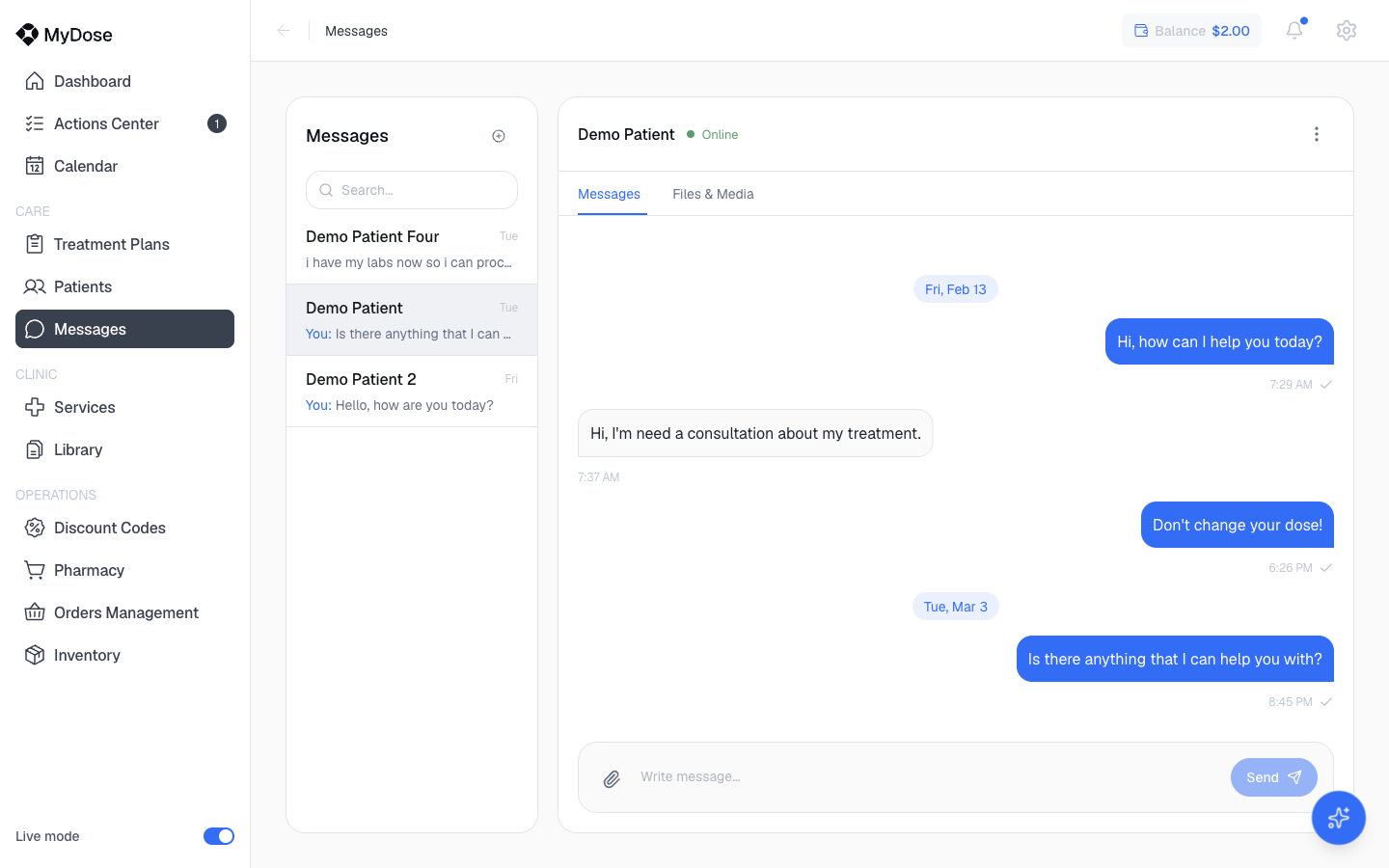
Starting a new conversation
Select New chat
From the Messages page, select New chat.
Choose the patient
Pick the patient you want to message.
Write and send
Type your message in the Write message box and select Send. The new conversation appears in your inbox.
Messaging from a patient's profile
You don't have to leave a patient's chart to message them. Open the patient from the Patients list, and on the Overview tab of their profile you'll find a Chat card — an inline view of your conversation with that patient.
- Type in the Type a message box and select Send to reply without leaving the profile.
- Select Go to chat to jump to the full conversation in Messages — useful when you want the Files & Media tab or Conversation options.
The Chat card is handy during a chart review: check the patient's latest results on the Health tab, then send a quick follow-up from Overview without switching pages.
Tips for clinical messaging
- Keep it actionable. Short, specific messages ("Your refill ships Monday — take with food") get read; long paragraphs get skimmed.
- Attach, don't describe. Use Attach image or PDF for dosing instructions, prep sheets, or forms instead of typing them out.
- Check Files & Media first. Before asking a patient to resend something, check the Files & Media tab — it collects everything already shared in the thread.
- Set expectations for urgency. Messaging is asynchronous. Make sure patients know it isn't for emergencies and give them a phone number for urgent issues.
- Message from where you're working. Use the inbox for triaging replies across patients, and the profile's Chat card when you're already in a specific patient's chart.