Track Patient Progress
Review a patient's treatments, dose logs, and vitals from the Treatments tab of their profile.
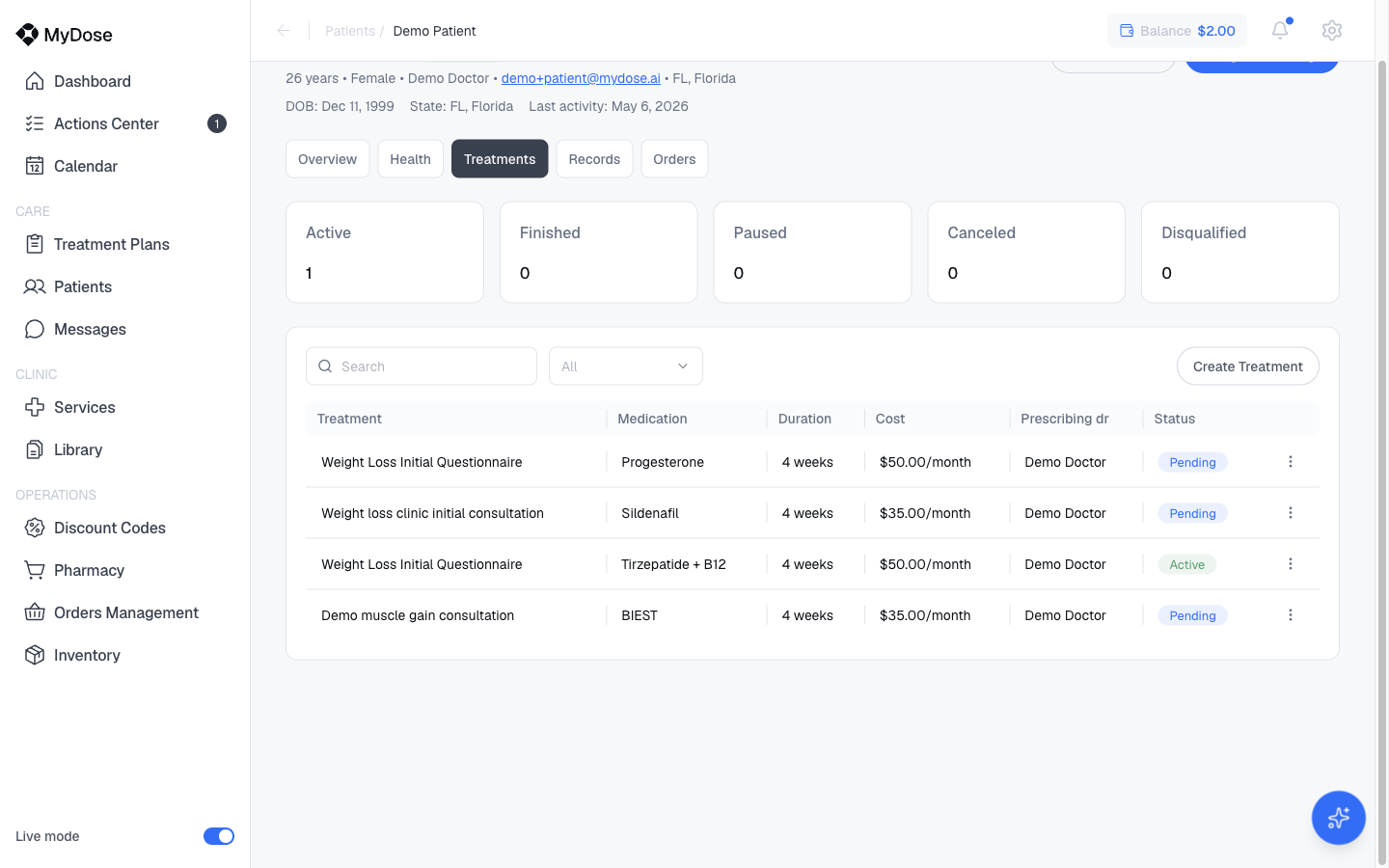
Every treatment a patient is on — with its medication, duration, cost, prescriber, and status — lives on the Treatments tab of their profile, alongside the progress data patients submit from their portal.
Where to find it
In the sidebar, select Patients, then select a patient's row to open their profile. Select the Treatments tab — one of the five profile tabs (Overview, Health, Treatments, Records, Orders).
What patients track
Patients on active treatments submit ongoing progress data through their portal:
- Dose logs — each time a patient administers a dose, they can log it with the actual amount given, how they felt, and any side effects
- Vitals — patients record measurements like weight over time
- Target goals — patients can set a target weight, giving you a benchmark to track against
You review this data in two places on the profile:
- The Health tab charts Weight history and BMI history as time-series trends — see the Health tab for everything else it holds
- Each treatment's own detail view carries the dose-by-dose record — open it from the treatment's row on the Treatments tab, or via the View treatment link on the Overview tab's Current Treatment card
Review a patient's treatments
Open the patient's profile
Select Patients in the sidebar, then select the patient you want to review from the patients list.
Select the Treatments tab
Use the search box or the All status filter to narrow the list. To start a new treatment from here, select Create Treatment — see Create a Treatment Plan.
Read the table
Each row shows the treatment, medication, duration, cost, prescribing doctor, and status — for example, a weight-loss treatment on Tirzepatide + B12 over 4 weeks at $50.00/month, marked Active. A Pending status means the treatment is set up but not yet underway.
Open a treatment for details
Select a treatment's row to open its detail view, where you can review the dose log and how the patient is progressing against the protocol.
Treatments table columns
| Column | What it shows |
|---|---|
| Treatment | The treatment's name |
| Medication | The prescribed medication (e.g. Tirzepatide + B12) |
| Duration | The length of the protocol (e.g. 4 weeks) |
| Cost | What the patient pays (e.g. $50.00/month) |
| Prescribing dr | The prescriber responsible for the treatment |
| Status | Pending or Active |
Each row also has a Treatment actions menu for managing that treatment.
Pausing or canceling a treatment requires prescriber permissions. See Roles & Permissions for who can do what.
Reading the dose log
The dose log inside a treatment's detail view shows each submitted administration record:
- Date and time of administration
- Planned dose vs. actual dose administered
- Patient-reported feeling — rated on a scale from very poor to excellent
- Side effects reported — any symptoms the patient flagged
- Notes — free-text notes the patient added
Look for patterns: consistent under-dosing, recurring side effects, or emotional responses that suggest the protocol needs adjustment.
The feeling scale gives you a quick read on how a patient is tolerating treatment. A sustained run of poor ratings alongside specific side effects is a signal to follow up — either via messaging or by scheduling a consultation from the Calendar. Side effects are patient-selected from a predefined list; common ones to watch are nausea, fatigue, injection site reactions, and headache. If side effects are persistent or severe, a prescriber may need to pause or adjust the treatment.
Related
Patient Profile
Tour all five tabs of the patient profile, from Overview to Orders.
Health Tab
Weight and BMI charts, conditions, diagnoses, labs, and medications.
Create a Treatment Plan
Build and assign a new treatment for a patient.
Message Patients
Follow up with a patient directly from their profile or Messages.