Patient Profile: Overview & Records
Find your way around a patient's profile — the header actions, the five tabs, and what lives in the Overview, Records, and Orders tabs.
Every patient has a profile page that gathers their treatment, health data, messages, records, and orders in one place. This page orients you to the profile layout and covers the Overview, Records, and Orders tabs — the Health and Treatments tabs each have their own guide.
Where to find it
Open the Patients list
Select Patients in the sidebar, under CARE.
Select a patient
Use the Search box or the Status, Category, and Access filters to find the patient, then select their row.
The profile opens on the Overview tab.
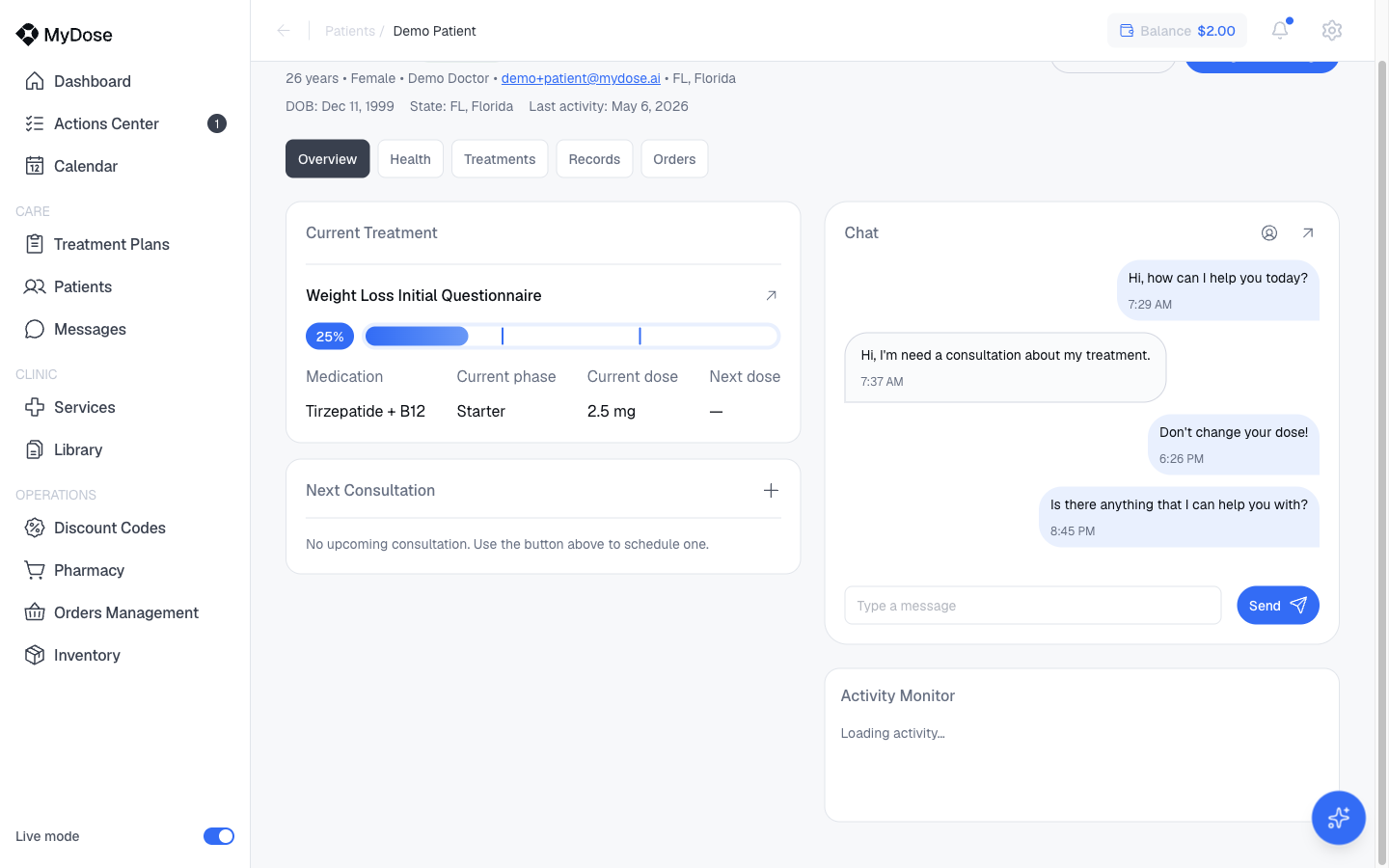
At the top of the page you'll find:
- The patient's name and email address (the email is clickable)
- A More options button
- Two quick-action buttons: Order Products and Assign a Package
Below the header, five tabs organize everything about the patient:
| Tab | What's in it |
|---|---|
| Overview | Current treatment, next consultation, chat, and recent activity at a glance (below) |
| Health | Weight and BMI history, conditions, diagnoses, labs, and medications — see Patient Health |
| Treatments | The patient's treatments and their status — see Patient Progress & Treatments |
| Records | Intakes, signed documents, SOAP notes, and uploaded files (below) |
| Orders | Order history, unpaid orders, and the current delivery (below) |
The Overview tab
The Overview tab is the at-a-glance summary of where the patient stands:
- Current Treatment — the patient's treatment, with a View treatment link to open the full detail.
- Next Consultation — the patient's upcoming appointment, with a Schedule new consultation action when you need to book one.
- Chat — an inline message thread with the patient. Type in the message box and select Send to reply without leaving the profile, or select Go to chat to open the full conversation. See Messaging for the complete messaging workflow.
- Activity Monitor — a section tracking the patient's recent activity.
The Chat card is a real conversation, not a summary — messages you send here reach the patient just like messages sent from the Messages page.
The Records tab
The Records tab collects the patient's paperwork in four sections.
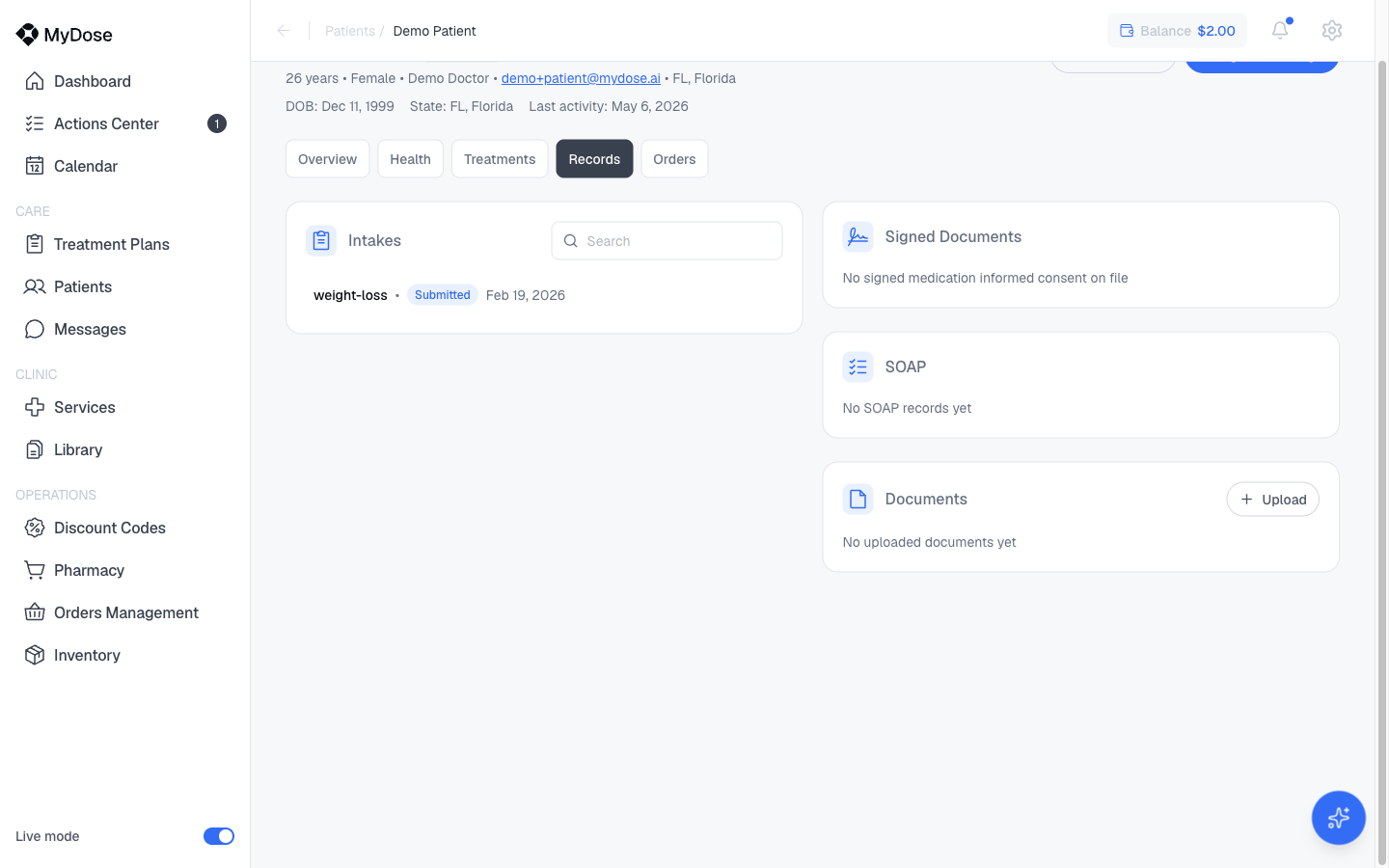
| Section | What's in it |
|---|---|
| Intakes | Questionnaires the patient has submitted — a searchable list of entries such as "weight-loss • Submitted Feb 19, 2026", each with an Intake actions menu |
| Signed Documents | Documents the patient has signed |
| SOAP | SOAP notes for the patient |
| Documents | Files attached to the patient's record — select Upload to add one |
For the intake review workflow — opening a submission and acting on it — see Reviewing Intakes.
The Orders tab
The Orders tab holds the patient's purchase history. It includes an order history table with Order ID, Date, Amount, and Delivery status columns (it reads "No orders history here yet" until the patient's first order), an Unpaid Orders table listing each order's number, due date, amount, and payment method, and a Current Delivery section for a shipment in progress.
Quick actions
The two buttons in the profile header let you act for the patient without leaving the profile:
- Order Products — place a product order on the patient's behalf.
- Assign a Package — put the patient on one of your clinic's packages. See Assign a Package for the full flow.
Related
Patients List
Search, filter, and manage your full patient roster.
Patient Health
Weight and BMI charts, conditions, diagnoses, labs, and medications.
Patient Progress & Treatments
The Treatments tab and tracking a patient's plans.
Reviewing Intakes
Review and act on submitted intake questionnaires.
Assign a Package
Put a patient on one of your clinic's packages.
Messaging
Chat with patients from the Messages page or the profile.