Manage Treatment Plans
Find, filter, and work inside treatment plans — the plans list, the Overview and Clinical tabs on an active plan, and what opens for Pending plans.
Every plan a patient is on — whether it started from the New Treatment flow or an assigned package — lives in Treatment Plans, where you can track dosing, weight, supplies, and billing in one place.
Where to find it
In the sidebar, open the CARE group and select Treatment Plans. The list opens with a New Treatment button in the header — use that to build a plan from scratch (see Create a Treatment Plan).
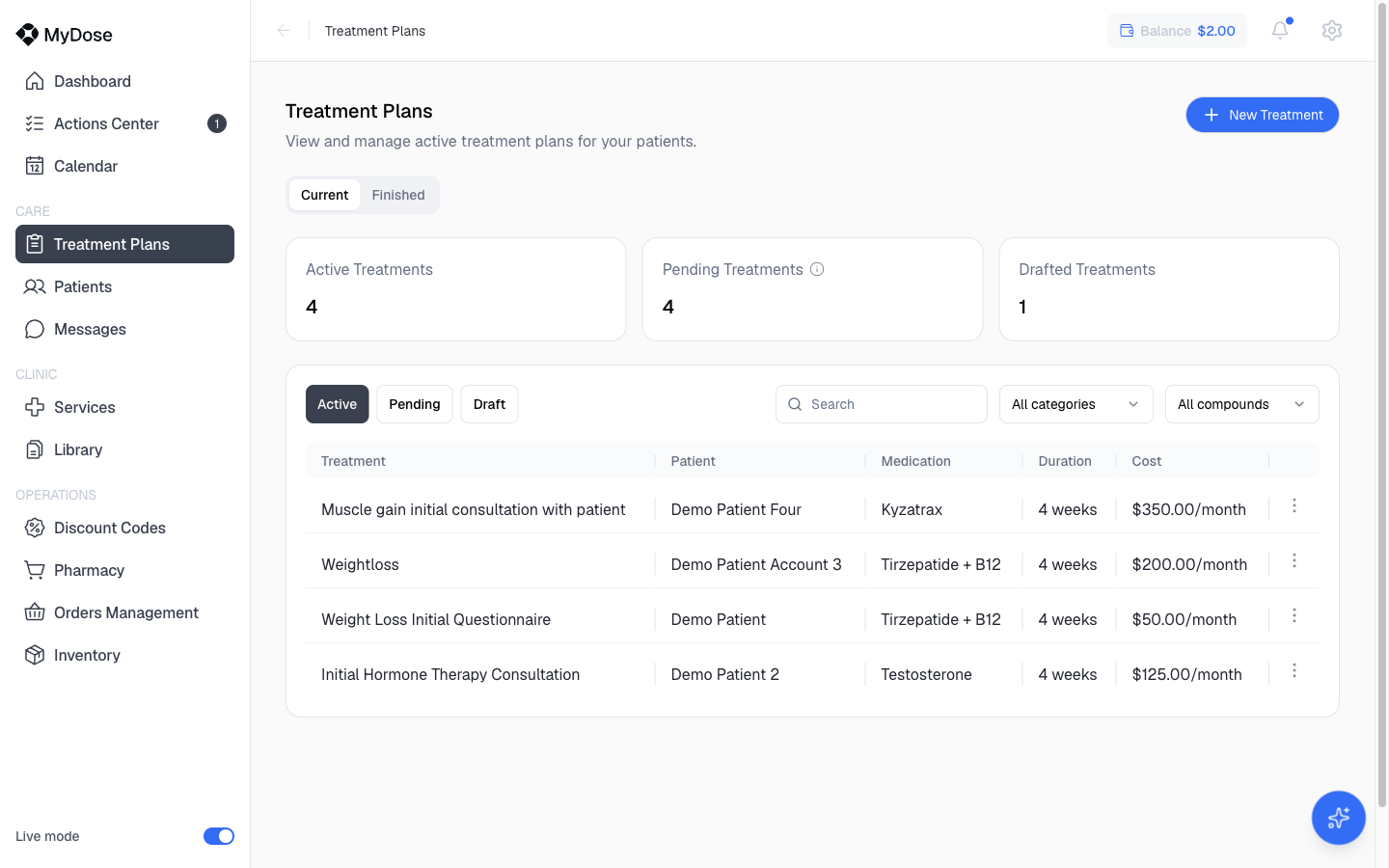
Read the list
Pick a tab and status
Switch between the Current and Finished tabs, then narrow by status with the Active, Pending, and Draft filter buttons.
Search or filter by medication
Use the Search box to find a plan or patient by name, or narrow the list with the All categories and All compounds filters.
Open a plan
Select a row to open the plan's detail view.
Each row shows the same set of columns:
| Column | What it shows |
|---|---|
| Treatment | The plan's name |
| Patient | Who the plan belongs to |
| Medication | The compound(s) on the plan |
| Duration | How long the plan runs |
| Cost | The plan's price |
Inside an active plan
The header shows the plan name and the patient — select the patient's name to jump to their profile. Next to it are three actions: Message Patient (see Messaging), Dose Log, and a Treatment actions menu. Below the header, the plan is organized into three tabs: Overview, Clinical, and Orders History.
The Overview tab is the day-to-day view:
- Treatment Timeline — the titration phases as chips (for example Starter: 2.5mg → Step-up: 5mg → Maintenance: 7.5mg), each labeled with its frequency and duration, like "every 7 Days · 4 Weeks".
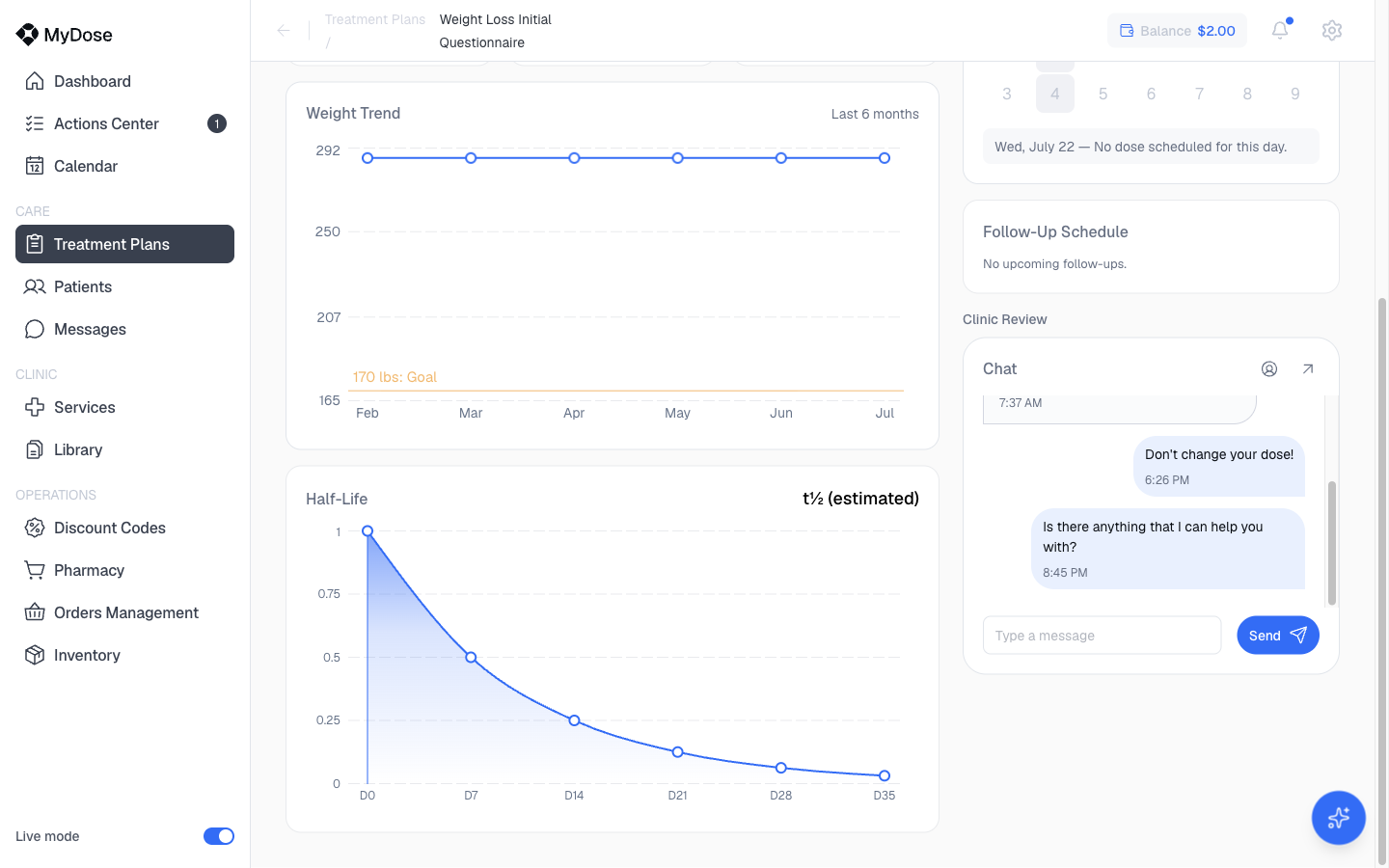
- Weight Trend — a chart of the patient's weight over the course of treatment.
- Half-Life — a chart of the medication's half-life curve.
- Dosing History — a month calendar of the patient's doses.
- Follow-Up Schedule — upcoming follow-ups for the plan.
- Clinic Review — the clinic's review of the plan.
- Chat — a card for messaging the patient without leaving the plan: Go to profile, Go to chat, or type a message and select Send.
The patient's own profile Overview mirrors this at a glance — the current treatment's progress, current phase, current dose, and next dose (see Patient Progress).
The Clinical tab
The Clinical tab holds the operational side of the plan:
- Supplies Status — what the patient has on hand, with an Add notes field for supply notes.
- Billing — the plan's billing details.
- Treatment History — a record of what has happened on the plan.
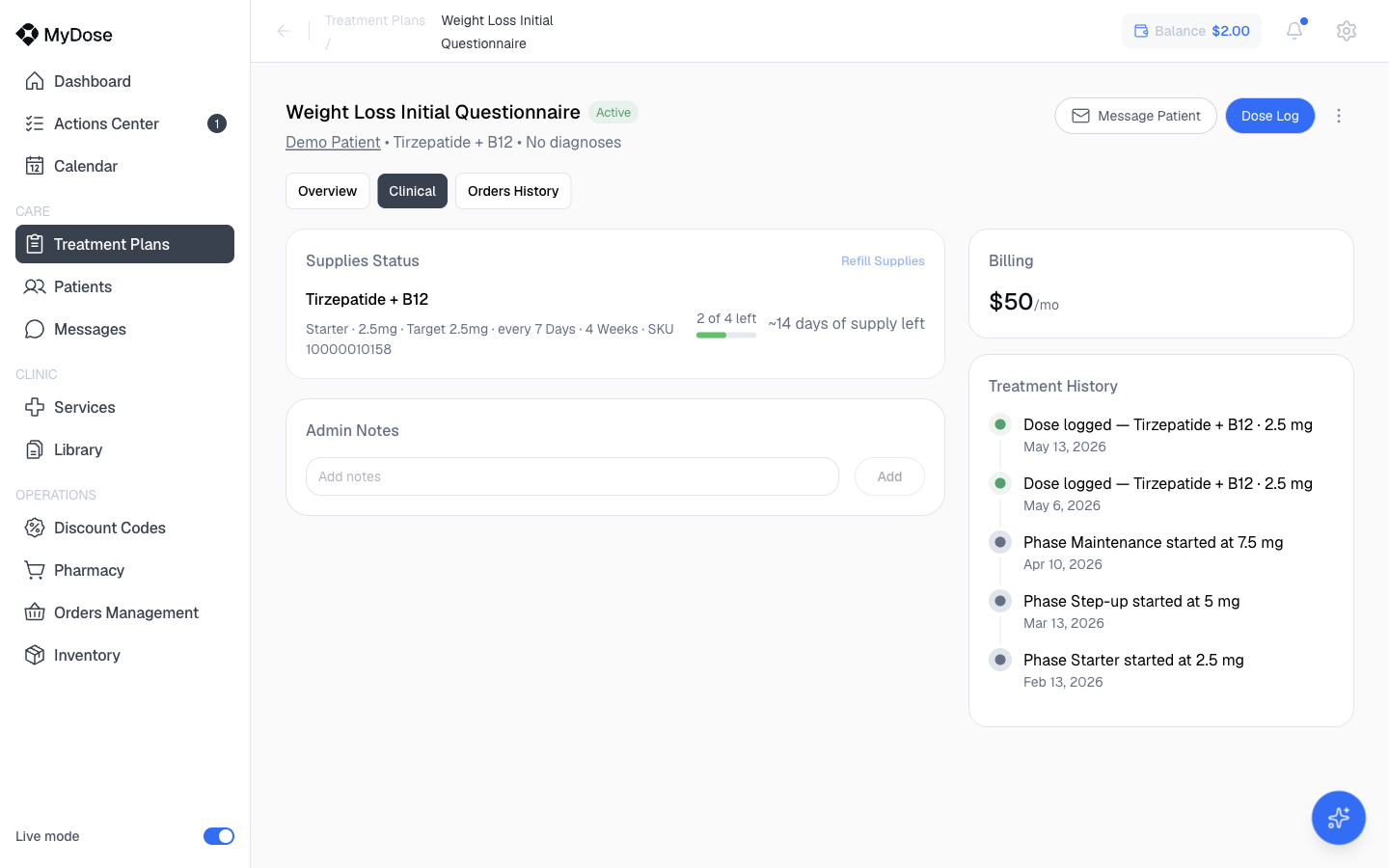
The third tab, Orders History, lists the orders placed for this plan.
Pending plans
Opening a Pending plan doesn't show the plan detail — it opens the intake review for that patient instead, so you can review their responses and select Approve & Continue to move the plan forward. See Review Intakes for the full walkthrough.
Pausing or canceling a treatment requires prescriber permissions. See Roles & Permissions for who can do what.
Related
Create a Treatment Plan
Build a plan from scratch with the New Treatment flow.
Review Intakes
Review a patient's intake before approving a Pending plan.
Assign a Package
Start a patient on a pre-built package instead of a custom plan.
Patient Profile
See a patient's treatment progress alongside their records.