Set Up Your Clinic
Finish the Getting Started checklist and the Viva setup assistant to take your clinic from first login to ready to treat patients.
After your first sign-in at app.mydose.ai, the portal tracks four setup items you need to finish before you can start treating patients. This page covers the Dashboard checklist, the Viva setup assistant, and the Stripe payment banner.
Where to find it
Sign in at app.mydose.ai and open Dashboard (the first item in the sidebar). The Getting Started card — "Finish account setup to start treating patients" — shows a progress bar (for example, "2 of 4 completed") and the four setup items. A View Product Tour link sits below the checklist.
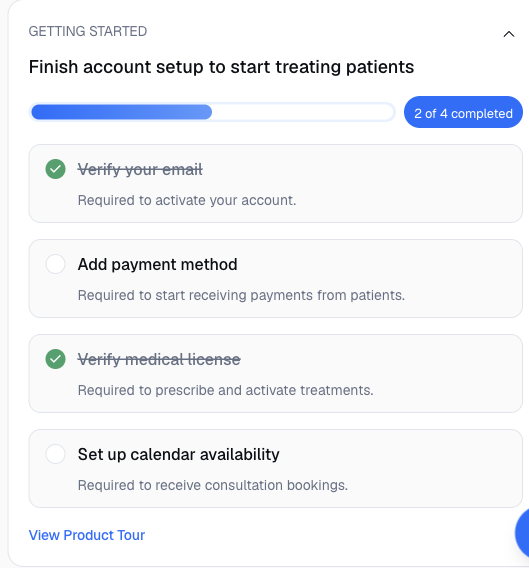
Complete the Getting Started checklist
Work through each item — the progress bar updates as you go.
| Checklist item | Why it's required | Where to complete it |
|---|---|---|
| Verify your email | Required to activate your account | Select the verification link in your invite email |
| Add payment method | Required to start receiving payments from patients | Follow the checklist item, or select Continue setup on the Stripe setup banner |
| Verify medical license | Required to prescribe and activate treatments | Account Settings → Licensing — see Prescriber Credentials |
| Set up calendar availability | Required to receive consultation bookings | Calendar in the sidebar (a full Calendar page is coming to this guide) |
Walk through setup with Viva
Viva is the built-in setup assistant. Look for the blue sparkles button in the bottom-right corner of the portal — hovering over it shows Continue clinic setup.
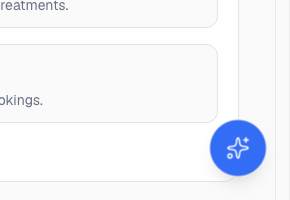
Open Viva
Select the sparkles button. A welcome screen introduces Viva — select Let's Begin! to start.
Complete each step
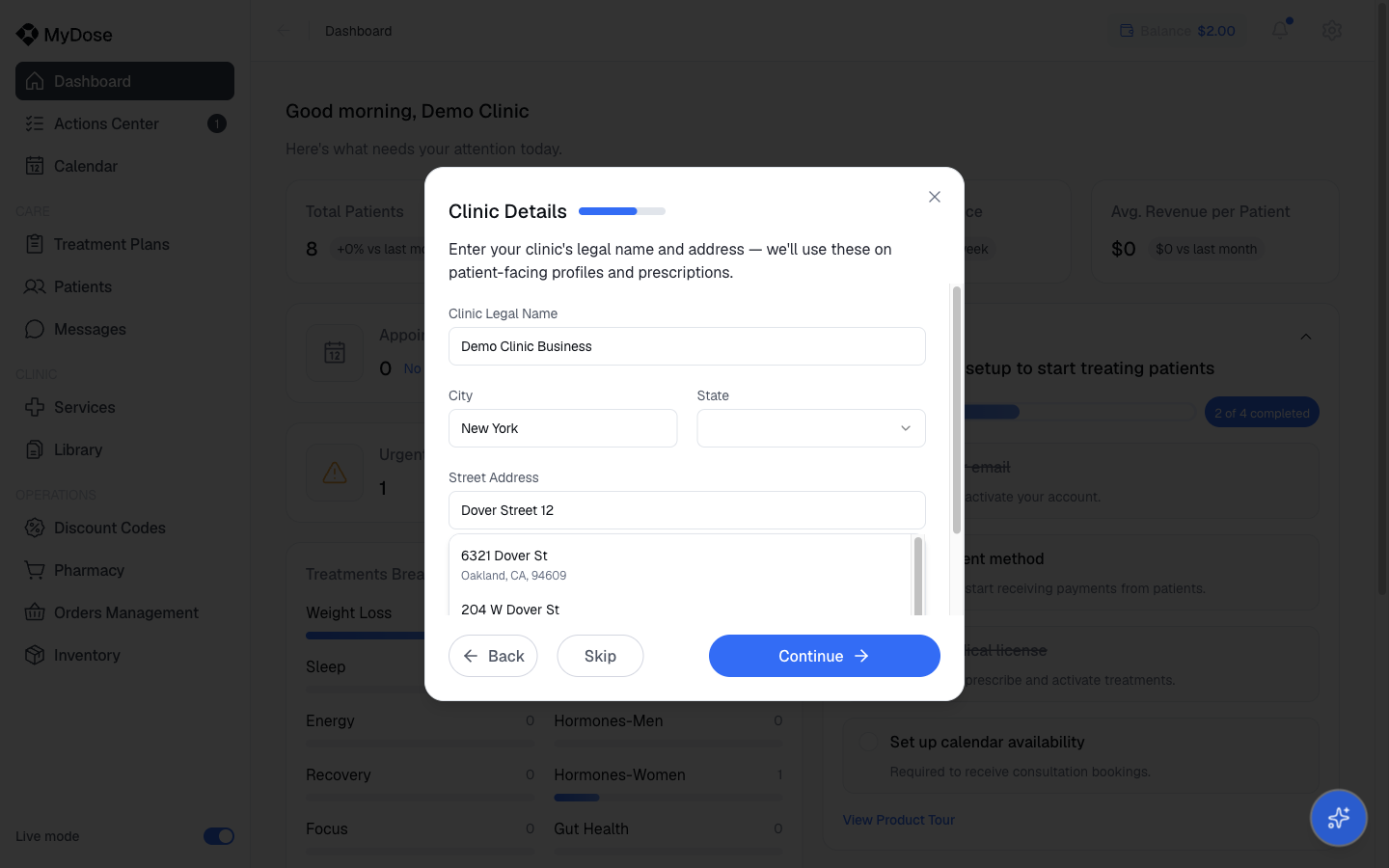
Viva walks you through setup one step at a time. For example, the Clinic Details step asks for Clinic Legal Name, City, State, Street Address (with address autocomplete), Postal code, and a 10-digit phone number. Use Back and Continue to move between steps.
Skip and resume anytime
Select Skip to pass over a step you're not ready for. You can close Viva at any point — when you reopen it, it resumes at your first incomplete step.
Want to explore before going live? Toggle Demo mode at the bottom of the sidebar to browse the portal with sample data — changes aren't saved, so you can click around safely. See Navigating the Portal.
Finish Stripe payment setup
Until your payment setup is complete, an amber Stripe setup banner appears in the portal. Select Continue setup on the banner to resume Stripe onboarding where you left off — completing it clears the Add payment method checklist item.
Related
Navigating the Portal
Learn the sidebar, header, and Demo mode before you dive in.
Prescriber Credentials
Add your NPI, DEA, and state medical licenses to verify your license.
Team Management
Invite doctors and staff once your clinic is set up.
Add a Patient
Bring in your first patients when setup is complete.