Clinic Settings
Manage your clinic's legal details, contact information, logo, and brand color from the Clinic Management page.
Clinic Settings is where you manage your clinic's business details and branding — the legal name, address, and contact info patients see, plus your logo and brand color.
Where to find it
Open the gear menu and select Clinic Settings. This opens the Clinic Management page at /account/clinic.
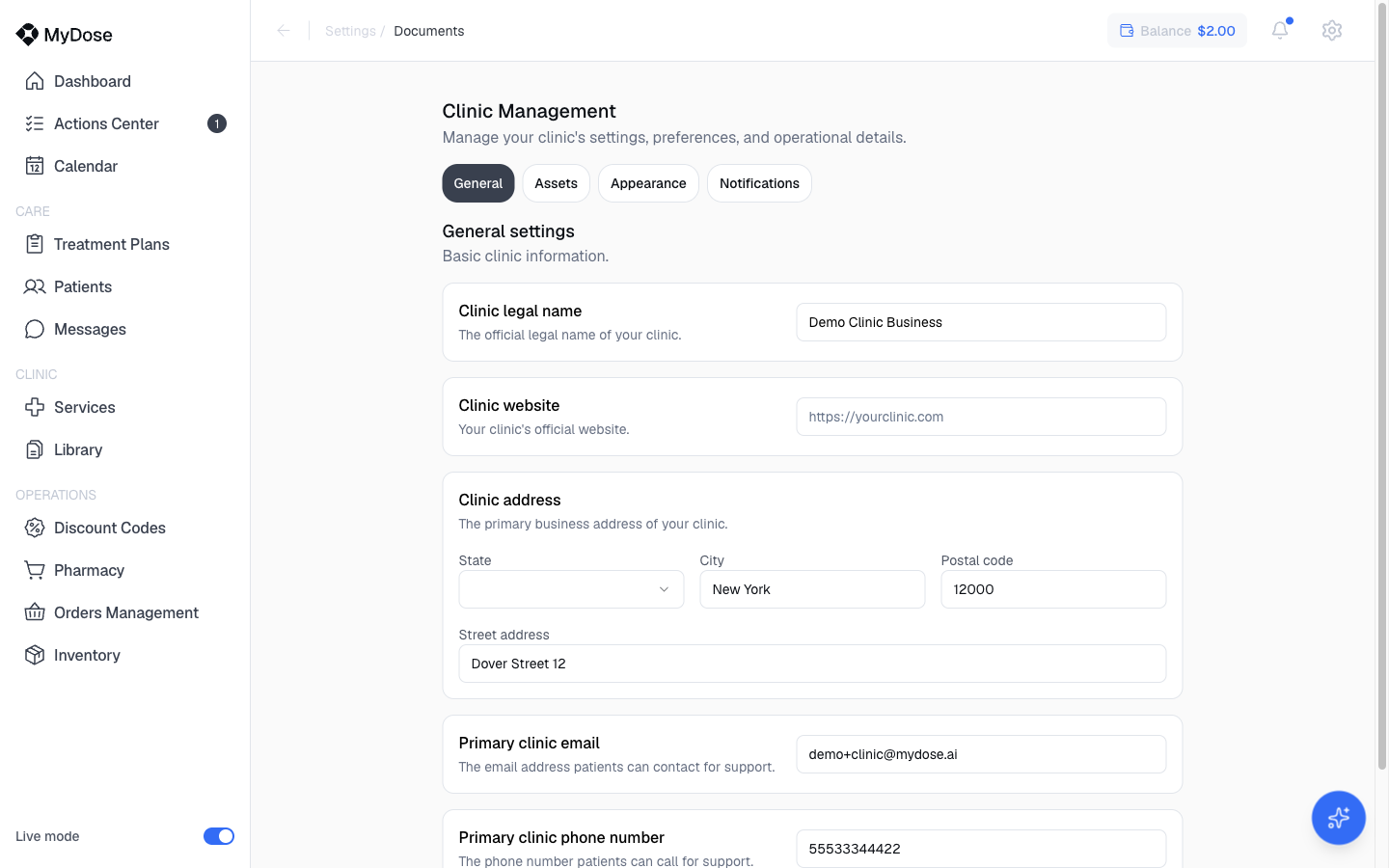
The page has four tabs:
| Tab | What it covers |
|---|---|
| General | Legal name, website, address, and contact details |
| Assets | — |
| Appearance | Logo and brand color |
| Notifications | — |
Update general settings
Enter your clinic's legal details
On the General tab, fill in Clinic legal name and Clinic website.
Fill in the clinic address
Complete the address fields: State, City, Postal code, and Street address.
Add contact information
Enter your Primary clinic email and Primary clinic phone number.
Save your changes
Select Save Settings.
These details appear on patient-facing surfaces, so keep them accurate and up to date.
Set your logo and brand color
The Appearance tab controls how your clinic looks to patients.
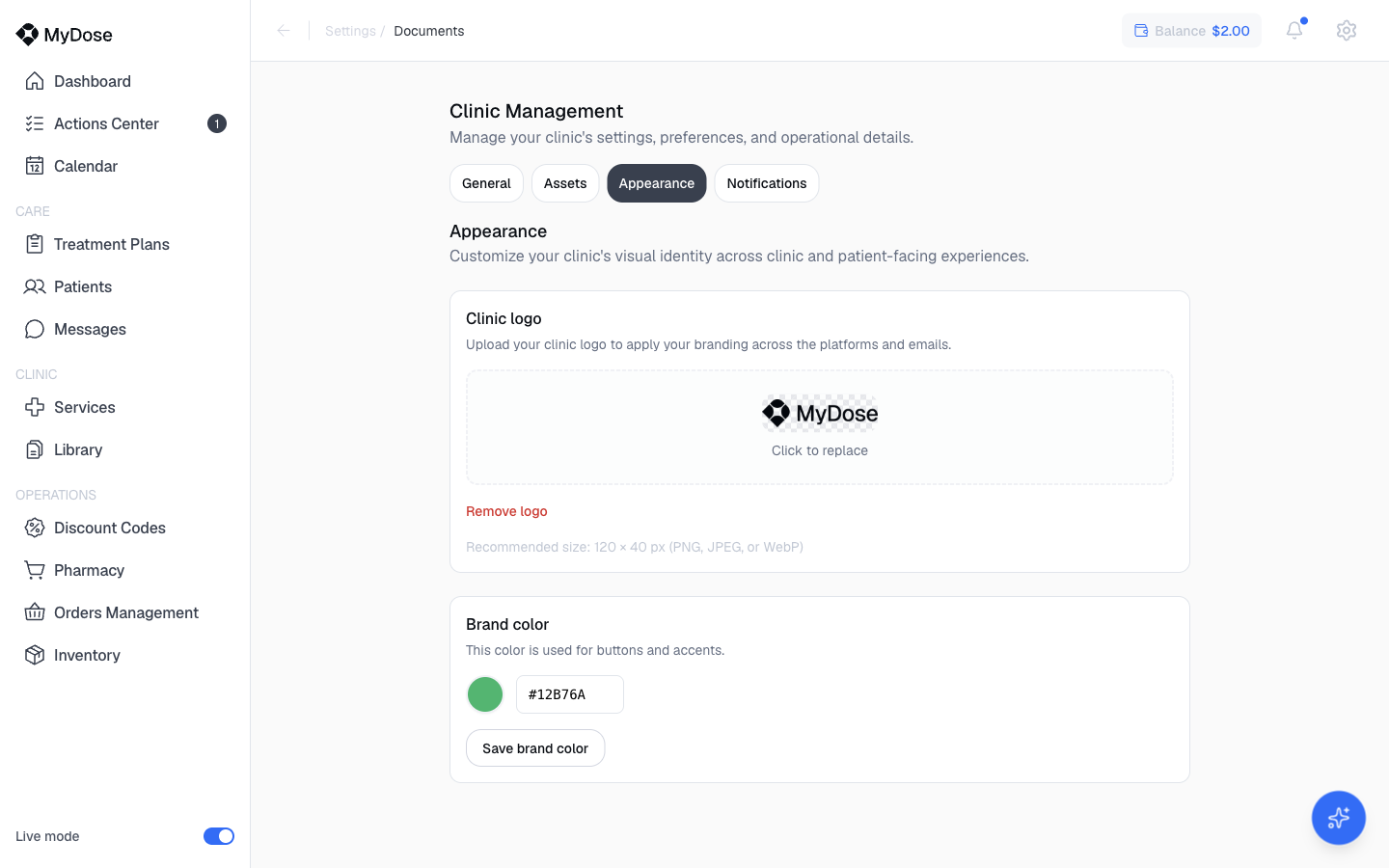
Upload your logo
Under Clinic logo, select Upload clinic logo and choose an image file. To swap it later, select the preview to replace it, or select Remove logo to clear it.
Choose a brand color
Under Brand color, use the color picker or enter a hex value.
Save the color
Select Save brand color.
Assets and Notifications
The Clinic Management page also includes Assets and Notifications tabs.
Your personal profile — name, credentials, and signature — lives in Account Settings, not Clinic Settings. See Prescriber credentials.