Account Balance & Top-Ups
Check your clinic's account balance, add funds with Top Up, and review or download your balance history.
Your account balance is the money your clinic holds on the platform. From the Account Balance page you can see your current balance, add funds with Top Up, and review every transaction in Balance History.
Where to find it
The Balance chip appears in the header on every page of the portal. Select it — or select View account balance — to open the Account Balance page.
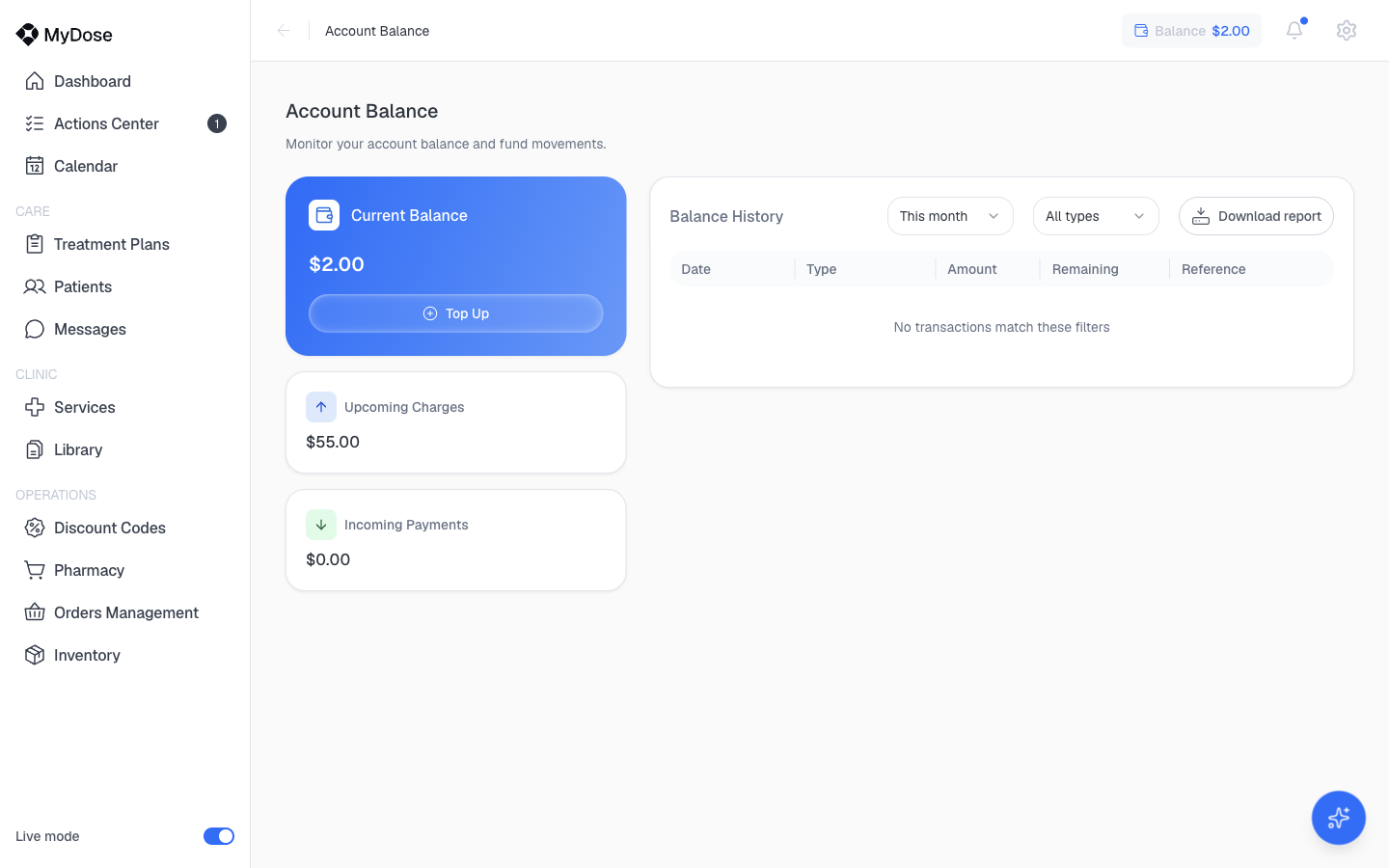
Your balance
The top of the page shows your current balance, with a Top Up button next to it.
Open the Account Balance page
Select the Balance chip in the header, or select View account balance.
Add funds
Select Top Up and follow the prompts to add money to your balance.
Balance history
Balance History lists every transaction on your account. Use the filters to narrow the list, or export it as a report.
Filter the list
Use the period filter (for example, This month) to choose a date range, and the type filter (All types) to show only certain kinds of transactions. If nothing matches, the table shows "No transactions match these filters."
Export a report
Select Download report to export the filtered transactions.
The history table shows the following columns:
| Column | What it shows |
|---|---|
| Date | When the transaction occurred |
| Type | The kind of transaction (for example, a top-up) |
| Amount | The amount of the transaction |
| Remaining | Your balance after the transaction |
| Reference | The reference associated with the transaction |
Platform charges and payment methods are managed on the Billing & Payments page — top-ups also appear there in Billing History as an "Account top-up" charge. See Billing & Payments.