Prescriber Credentials & Profile
Add your NPI, DEA registration, state medical licenses, and e-signature in Account Settings so you can prescribe and activate treatments.
Your prescriber credentials — NPI, DEA registration, and state medical licenses — live in your personal Account Settings, along with your e-signature and security options. Keeping them complete and current is what unlocks prescribing in MyDose.
Where to find it
Select the gear icon in the top-right of the portal, then select Account Settings (/account/profile). The page has four tabs:
| Tab | What it controls |
|---|---|
| General | Your name, role, and contact details |
| Licensing | NPI, DEA registration, and state medical licenses |
| E-signature | The signature applied to documents and prescriptions |
| Security | Password and two-factor authentication |
The Licensing and E-signature tabs appear for prescribing team members. Credentials are personal to each account — every prescriber signs in and manages their own from Account Settings, not from Team Members.
Why credentials are required
MyDose uses your credentials to identify you as the prescribing clinician on treatment plans and prescriptions. Until your medical license is verified, you can't prescribe or activate treatments — it's one of the four items in the GETTING STARTED checklist on your Dashboard ("Verify medical license — Required to prescribe and activate treatments"). Your e-signature is then used to sign documents and prescriptions inside the platform.
Review each settings tab
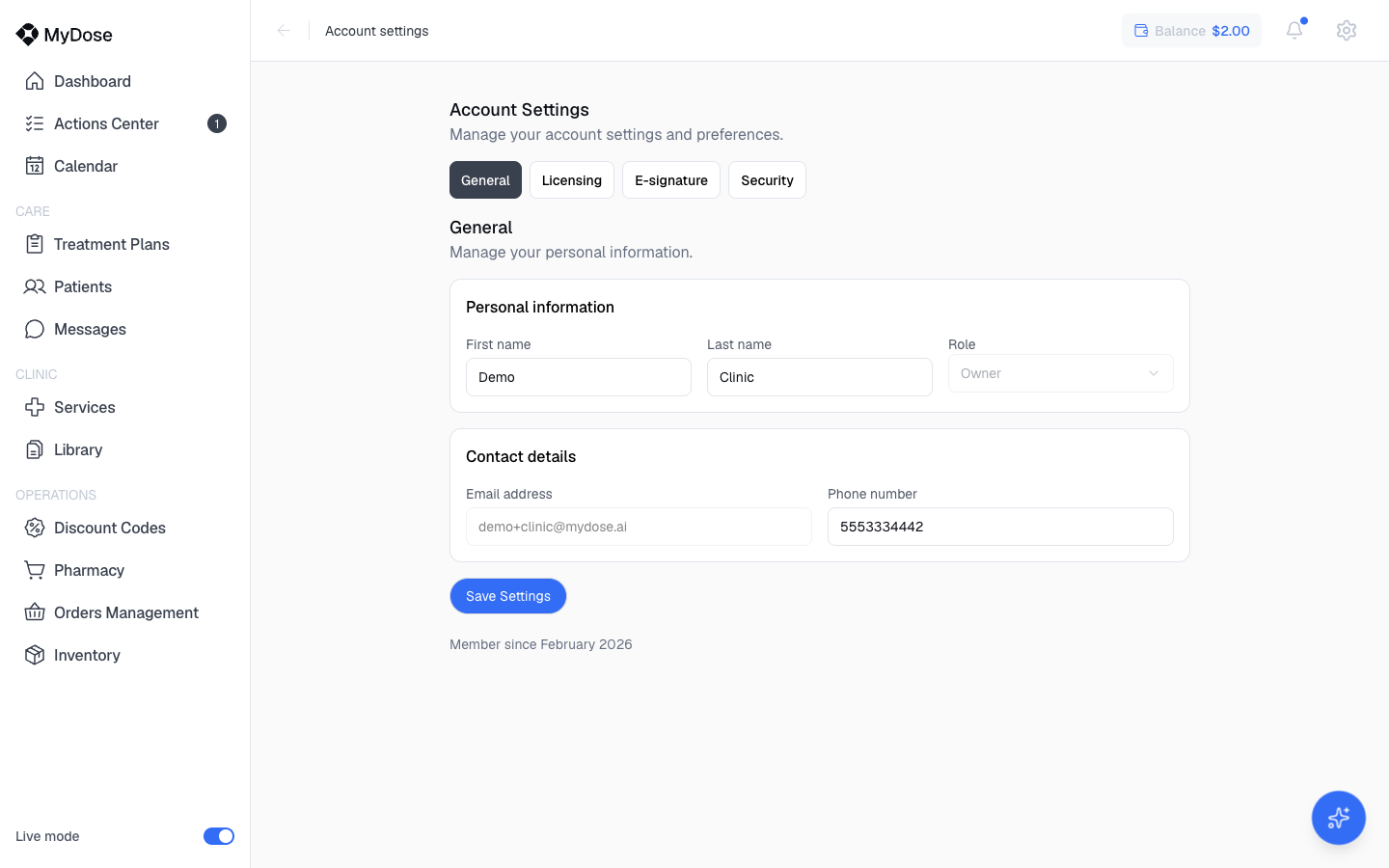
Your basic profile information:
- Personal information — First name, Last name, and Role (read-only).
- Contact details — Email address (read-only) and Phone number.
Select Save Settings after making changes.
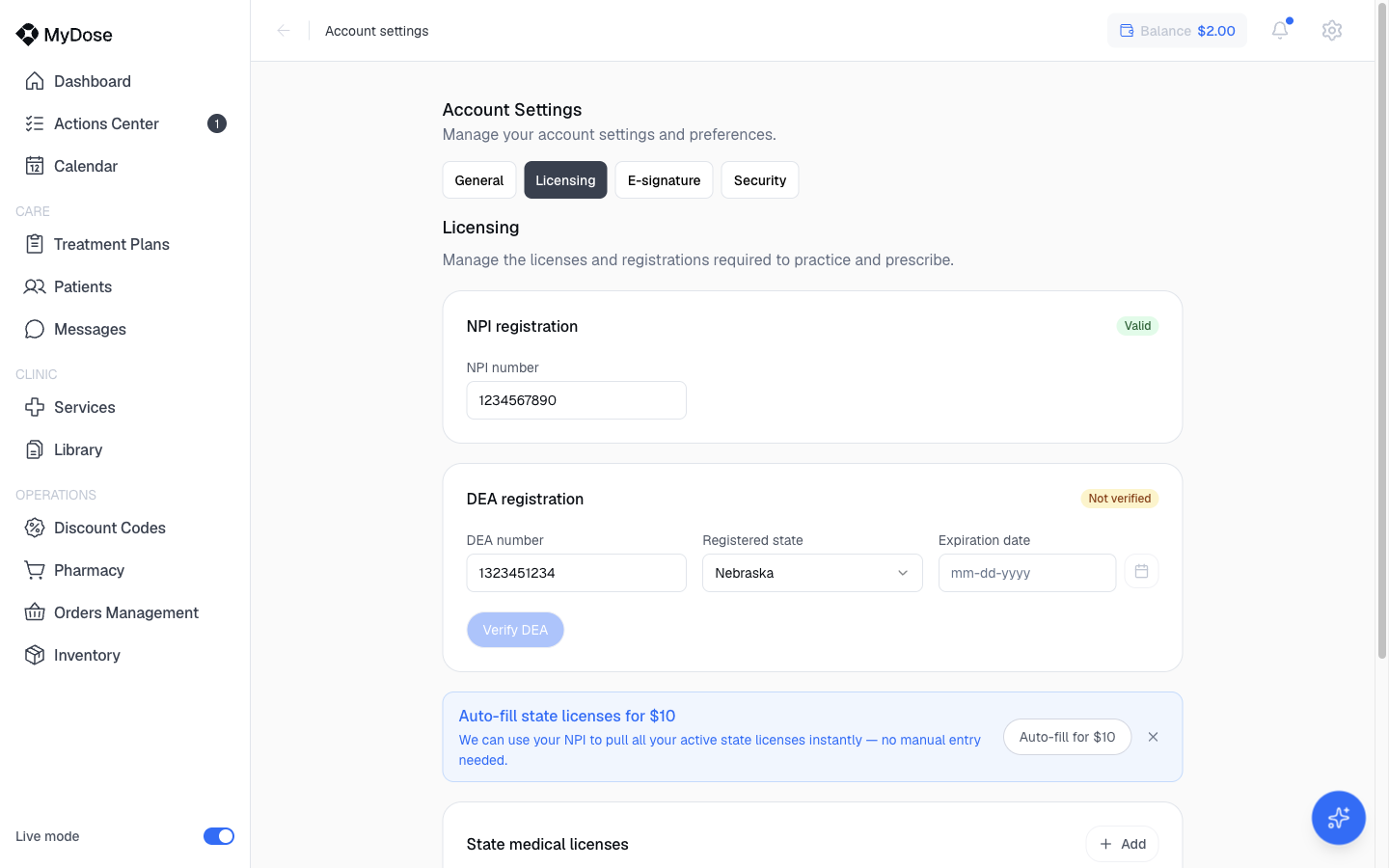
The Licensing tab holds everything MyDose needs to verify you as a prescriber:
- NPI registration — enter your NPI number.
- DEA registration — enter your DEA number, Registered state, and Expiration date, then select Verify DEA to confirm the registration. An Auto-fill for $10 option is available if you'd rather not enter the details by hand.
- State medical licenses — a list of every license you hold. Each entry has a State, License number, License type (e.g. MD), and Expiration date. Use Add and Remove to manage the list.
Select Save Settings to store your changes.
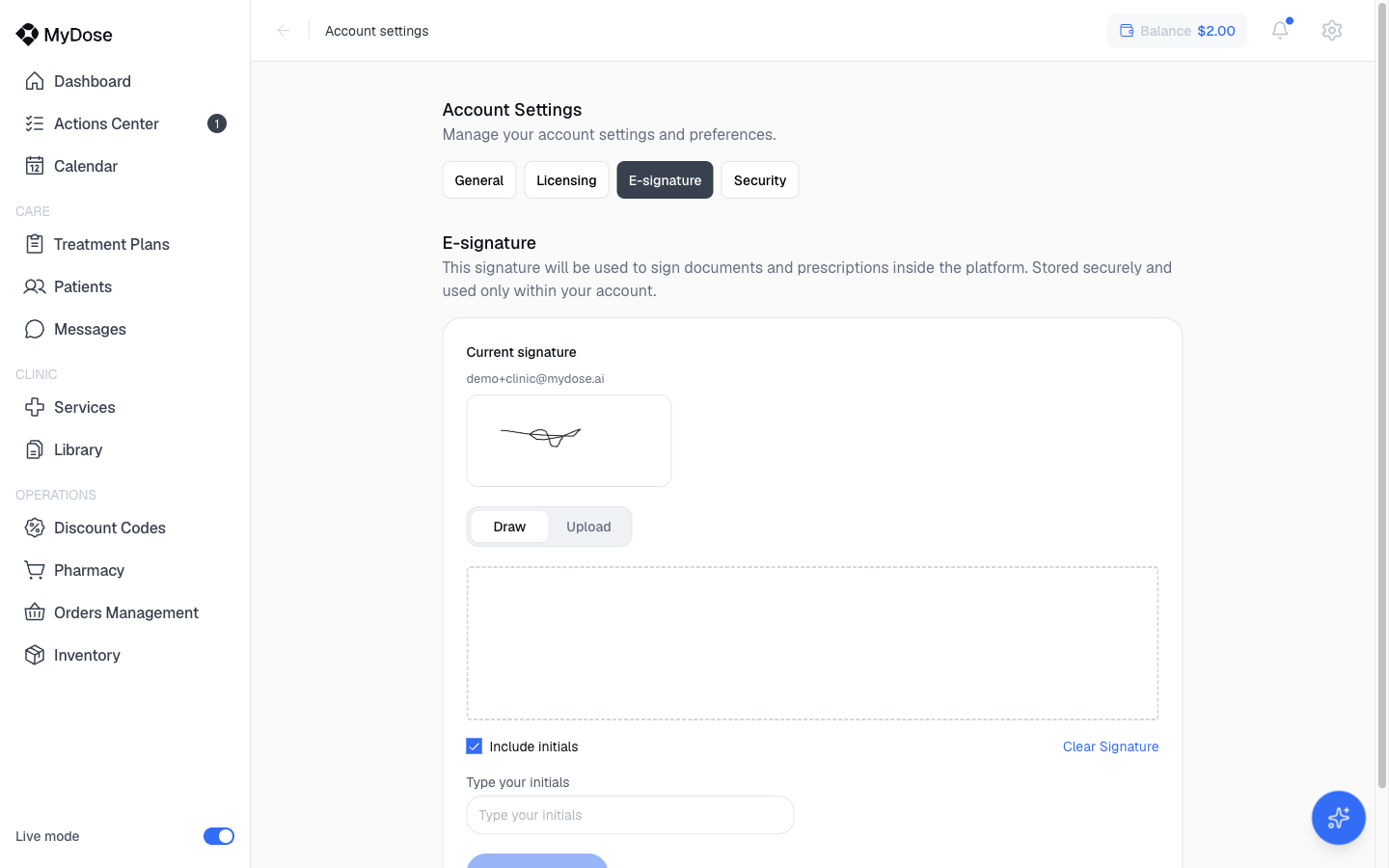
This signature will be used to sign documents and prescriptions inside the platform.
- A preview shows your current signature.
- Toggle between Draw (sign on the drawing canvas) and Upload (use an image of your signature).
- Check Include initials and fill in Type your initials if you want initials available alongside your signature.
- Select Clear Signature to start over, or Save Signature to keep it.
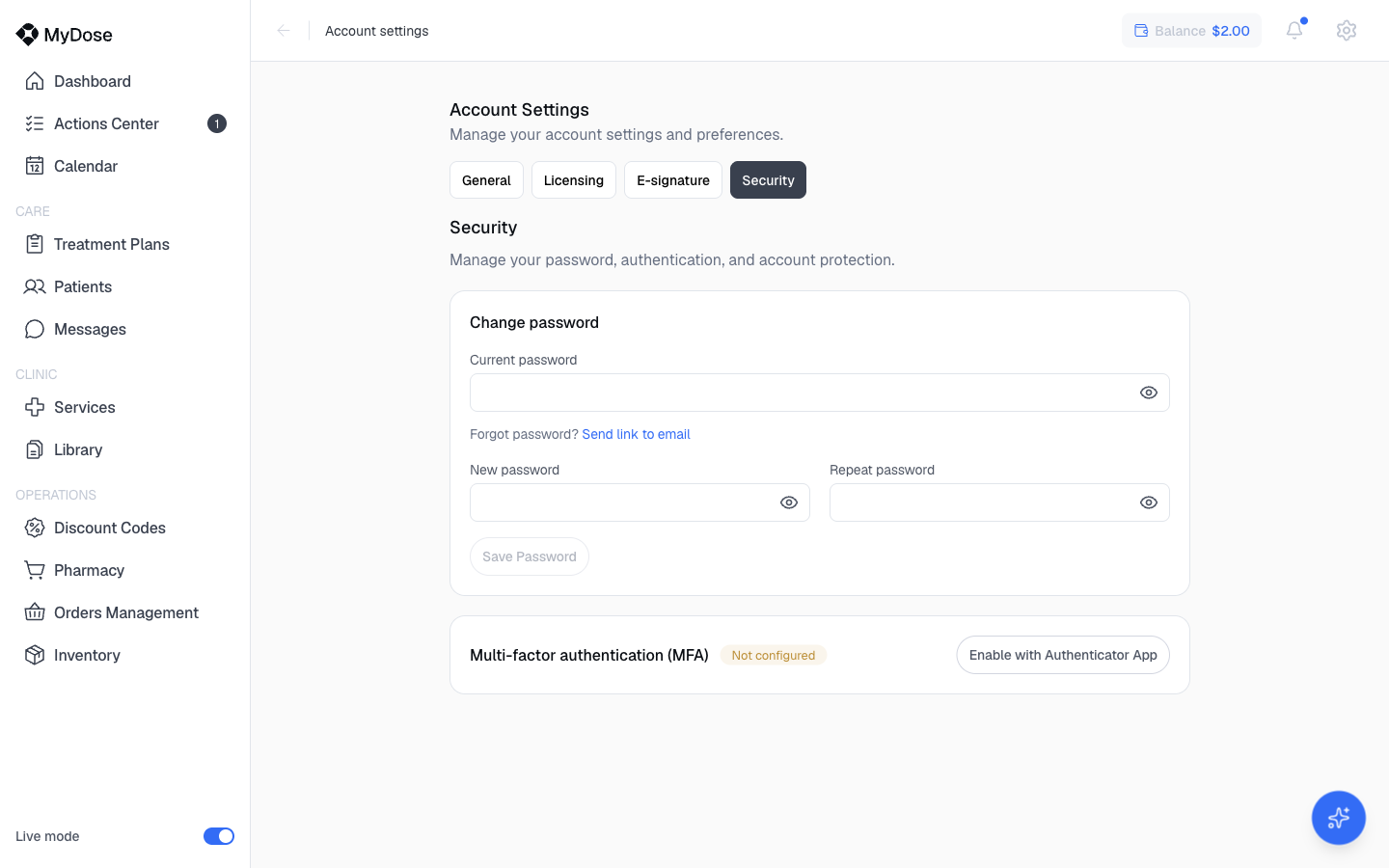
Account access controls:
- To change your password, enter your current password, then a new password and confirmation, and select Save Password. If you've forgotten your password, use Send link to email to reset it.
- Two-factor — select Enable with Authenticator App to add a second factor at sign-in.
Add a state license
Open Account Settings
Select the gear icon in the top-right of the portal, then select Account Settings.
Go to the Licensing tab
Select Licensing and scroll to the State medical licenses list.
Add a license entry
Select Add, then fill in the State, License number, License type (e.g. MD), and Expiration date.
Save
Select Save Settings. Repeat for each additional state license you hold. To delete an entry, select Remove on that row.
Practice in multiple states
If you treat patients in more than one state, add a separate license entry for every state where you're licensed. Add the license before you start treating patients in that state, and keep your DEA Registered state accurate as well. Removing a license entry removes that state from your credential record, so only remove licenses that have genuinely lapsed or that you no longer use.
Keep credentials current
Enter expiration dates carefully and update them whenever you renew a license or DEA registration. An expired credential on file can interrupt your ability to prescribe — set your own renewal reminders well ahead of each expiration date.
When anything changes — a renewed state license, a new DEA registration, an additional state — update the Licensing tab right away and select Save Settings so your record stays accurate.
Related
Team Management
Invite team members and manage their profiles from the gear menu.
Roles & Permissions
See which prescriber permissions each role carries.
Clinic Setup
Finish the rest of the Getting Started checklist for your clinic.
Create a Treatment Plan
Put your verified credentials to work prescribing treatments.