Roles & Permissions
Understand what Owners, Doctors, and Staff can do in the clinic portal and how each permission maps to what a member sees.
Every team member's access is controlled by their role and a set of individual permissions. This page is the reference matrix — for the day-to-day workflow of inviting and editing members, see Team management.
Where to find it
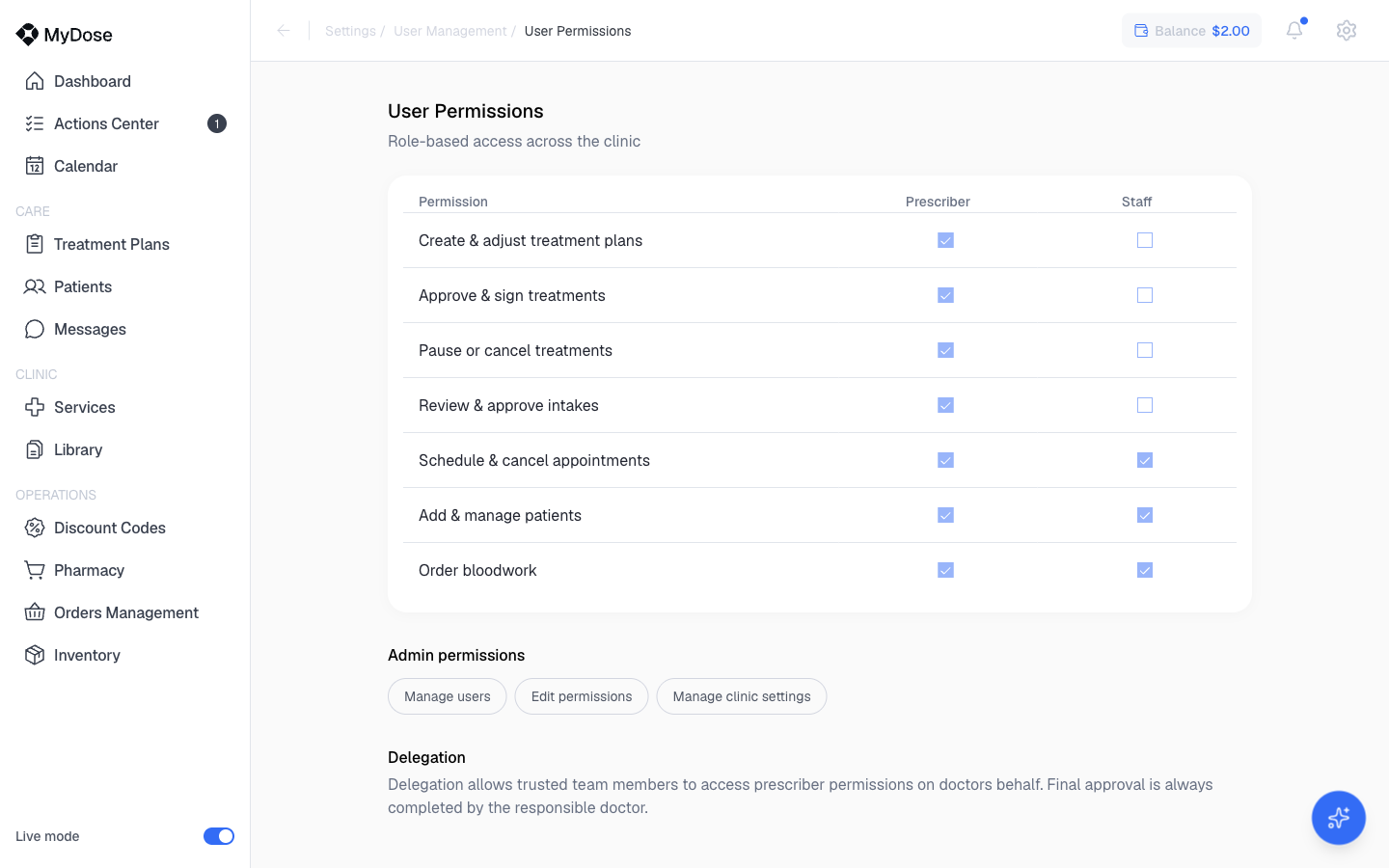
Select the gear icon in the top-right, then Team Members. On the User Management page, select the small gear ("User management settings") next to the heading to open the User Permissions page — the role-based access matrix for your clinic.
Roles at a glance
| Role | Access |
|---|---|
| Owner | Full access to the clinic, all permissions, plus admin capabilities (manage users, edit permissions, manage clinic settings). |
| Doctor | All 7 prescriber permissions by default. Can be narrowed per member in the User Details dialog. |
| Staff | Defaults: Schedule & cancel appointments, Add & manage patients, Order bloodwork. No prescribing or approvals by default. |
| Whitelabel accounts | Reduced portal — clinical items are disabled with the tooltip "Not available for whitelabel clinics". |
The permission matrix
This is the matrix shown on the User Permissions page. Prescribers get all seven permissions by default; Staff get three.
| Permission | Prescriber (default) | Staff (default) |
|---|---|---|
| Create & adjust treatment plans | ✓ | — |
| Approve & sign treatments | ✓ | — |
| Pause or cancel treatments | ✓ | — |
| Review & approve intakes | ✓ | — |
| Schedule & cancel appointments | ✓ | ✓ |
| Add & manage patients | ✓ | ✓ |
| Order bloodwork | ✓ | ✓ |
Defaults are a starting point — any member's permissions can be toggled individually in their User Details dialog.
Admin permissions
Admin capabilities are separate from prescriber and staff permissions:
- Manage users
- Edit permissions
- Manage clinic settings
The Owner has all of these. To grant them to another member, use the Admin access toggle in the team list on the User Management page.
Delegation
From the User Permissions page:
"Delegation allows trusted team members to access prescriber permissions on doctors behalf. Final approval is always completed by the responsible doctor."
Delegation lets a trusted staff member work inside prescriber workflows without holding final sign-off — the responsible doctor always completes the approval.
Change a member's permissions
Open Team Members
Select the gear icon in the top-right, then Team Members.
Open the member's details
Select the kebab menu on the member's row, then View details.
Toggle permissions
Choose Prescriber or Staff, then toggle individual permissions on or off.
Save
Select Save permissions.
For the full team workflow — inviting, deactivating, resetting passwords — see Team management.
How permissions shape the sidebar
Sidebar items are hidden or disabled based on the member's permissions. For example:
| Without this permission | The member doesn't see |
|---|---|
| Add & manage patients | Dashboard, Patients |
| Review & approve intakes | Actions Center |
| Schedule & cancel appointments | Calendar |
Exactly which items appear depends on the member's full permission set — two members with the same role can see different sidebars if their individual permissions differ.