Review and Approve Intakes
How to review a patient's intake responses, use the AI summary and review checklist, and approve the intake so treatment can begin.
Before a treatment plan moves forward, a prescriber reviews the patient's intake. This page covers where reviews live, what's on the review screen, and how to approve.
What is an intake?
An intake is a health questionnaire a patient completes as part of their treatment plan or booking flow. It collects the clinical information you need to assess eligibility before prescribing — symptoms, medical history, current medications, and uploaded photos.
Intakes that need your review appear in the Actions Center, your queue for open clinical tasks. The badge on the sidebar icon counts the review items waiting for you.
Where to find it
There are two ways to open an intake review:
- Actions Center — select Review Intake on a queue item. See Actions Center.
- Treatment Plans — open a plan with Pending status. See Manage Treatment Plans.
Reviewing and approving intakes requires prescriber permissions. If you don't see Review Intake in your queue, check your role with your admin — see Roles & Permissions.
The review screen
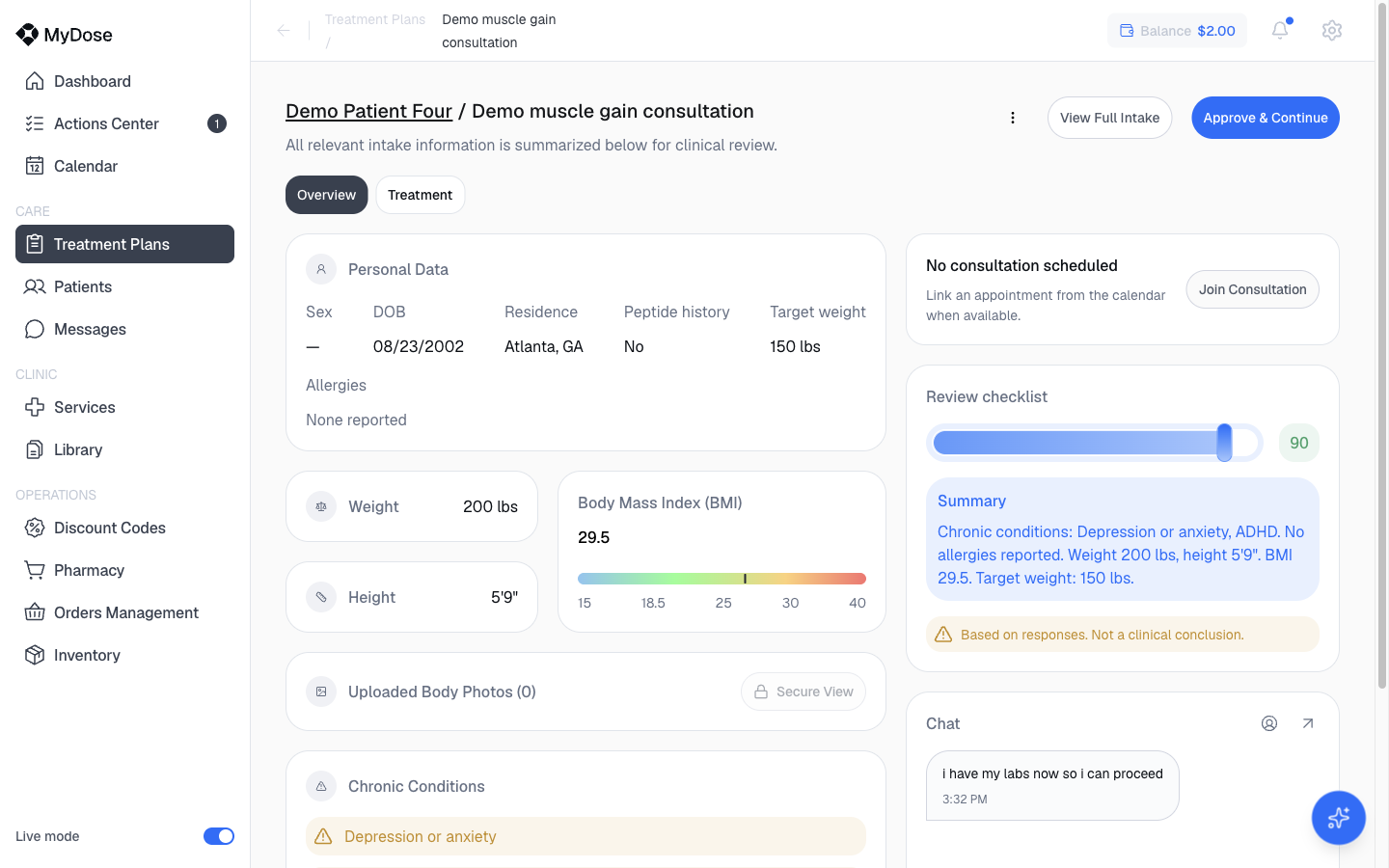
The header shows the patient's name and the consultation you're reviewing, with the note "All relevant intake information is summarized below for clinical review." Two buttons sit at the top:
- View Full Intake — opens the patient's complete questionnaire responses.
- Approve & Continue — records your approval and moves the intake forward.
An Overview / Treatment toggle switches between the intake summary and the treatment details.
Summary cards
| Card | What it shows |
|---|---|
| Personal Data | Sex, date of birth, residence, peptide history, target weight, and allergies |
| Weight, Height, Body Mass Index (BMI) | The patient's reported measurements and calculated BMI |
| Uploaded Body Photos | Patient photo uploads, opened with Secure View for restricted viewing |
| Chronic Conditions | Reported conditions, with flagged conditions highlighted |
| Current Medications | Medications the patient reports taking |
Right rail
- Consultation card — Join Consultation connects you to the patient's appointment; link an appointment from the Calendar when available.
- Review checklist — a score summarizing the intake review.
- Summary — an AI-generated summary of the patient's responses, marked "Based on responses. Not a clinical conclusion." Treat it as a reading aid, not a clinical conclusion — base your decision on the responses themselves.
- Chat — a message panel with the patient, so you can ask questions without leaving the review.
Review and approve an intake
Open the review
From the Actions Center, select Review Intake on a queue item — or open a Pending plan in Treatment Plans.
Work through the summary
On the Overview view, check Personal Data, the Weight, Height, and Body Mass Index (BMI) cards, Chronic Conditions, and Current Medications. Select Secure View to review Uploaded Body Photos. Switch to Treatment to check the treatment details.
Read the full responses
Select View Full Intake to read the complete questionnaire rather than only the summarized cards.
Check the right rail
Note the Review checklist score and read the AI Summary. Remember its disclaimer — "Based on responses. Not a clinical conclusion." — and verify anything that affects your decision against the actual responses.
Ask the patient anything unclear
Use the Chat panel to message the patient mid-review. If a consultation is linked, you can also select Join Consultation.
Approve
Select Approve & Continue. The intake is approved and the treatment plan can move forward out of Pending.
If you're not ready to approve — you need more information, or the patient isn't a candidate — other outcomes are available from the review screen's menu.
The Chat panel is the fastest way to resolve a borderline intake: ask the patient directly before choosing another outcome, and finish the review once they respond.