Calendar Settings
Set your weekly availability, override specific dates, cap consultation volume, and manage holidays for your clinic's calendar.
Calendar Settings controls when your clinic can be booked — your time zone, weekly hours, date-specific overrides, consultation limits, and holidays.
Where to find it
Open Calendar from the sidebar, then either:
- Select the gear icon next to the Calendar heading, or
- Select Manage in the Consultation Types panel on the right.
Both open Calendar Settings at /calendar/calendar-settings.
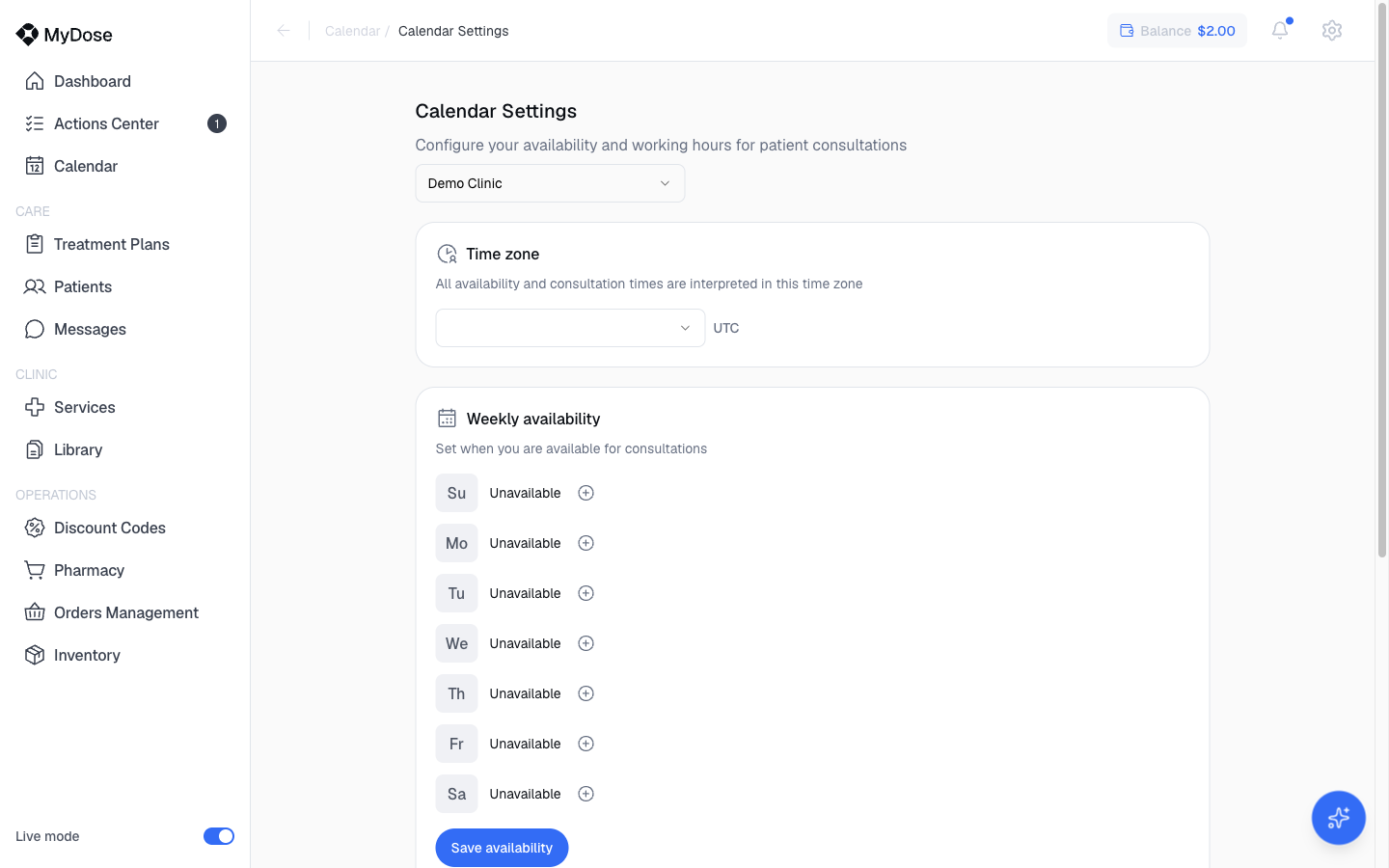
Settings apply to the provider chosen in the selector at the top of the page. Confirm the right provider is selected before you edit any hours.
Set your weekly availability
Pick the provider
Use the provider selector at the top of Calendar Settings to choose whose schedule you're editing.
Set your time zone
Choose your clinic's time zone from the Time zone dropdown so your hours are interpreted correctly.
Edit each day's hours
In Weekly availability, set the bookable hours for each day of the week using the per-day editors.
Save
Select Save availability to apply your schedule.
Saving your availability completes the Set up calendar availability item in the GETTING STARTED checklist on your Dashboard — it's required to receive consultation bookings. See Clinic Setup for the full checklist.
Override specific dates
Use Date-specific availability when a particular date needs different hours than your weekly schedule.
Add a day
In the Date-specific availability section, select Add Day.
Set the override
Choose the date and the hours that should apply on that day. The override takes the place of your weekly hours for that date.
Cap your consultations
Use Consultation limits to cap how many consultations can be booked.
Add a limit
In the Consultation limits section, select Add Limit.
Set the cap
Choose the limit you want — for example, a maximum number of consultations per Day.
Manage holidays
The Holidays section contains a single toggle.
Settings at a glance
| Section | What it controls |
|---|---|
| Time zone | The time zone your availability hours are set in |
| Weekly availability | Your standard bookable hours for each day of the week |
| Date-specific availability | One-off hour overrides for specific dates (Add Day) |
| Consultation limits | Caps on how many consultations can be booked (Add Limit) |
| Holidays | A toggle for how holidays are handled |
Once your availability is saved, open slots become bookable — see Calendar for creating appointments and sharing your consultation types.
Related
Calendar
View your schedule, book appointments, and manage consultation types.
Clinic Setup
Finish the GETTING STARTED checklist, including calendar availability.
Dashboard
See Appointments Today and your setup progress at a glance.
Navigating the Portal
Find your way around the sidebar, header, and settings menus.