Patients List
Find, filter, and manage every patient in your clinic from the Patients list.
The Patients list is your clinic's roster — every patient in one searchable table, with quick paths to add new patients, invite them to the portal, and open individual profiles.
Where to find it
Select Patients in the sidebar (under CARE) to open the Patients page.
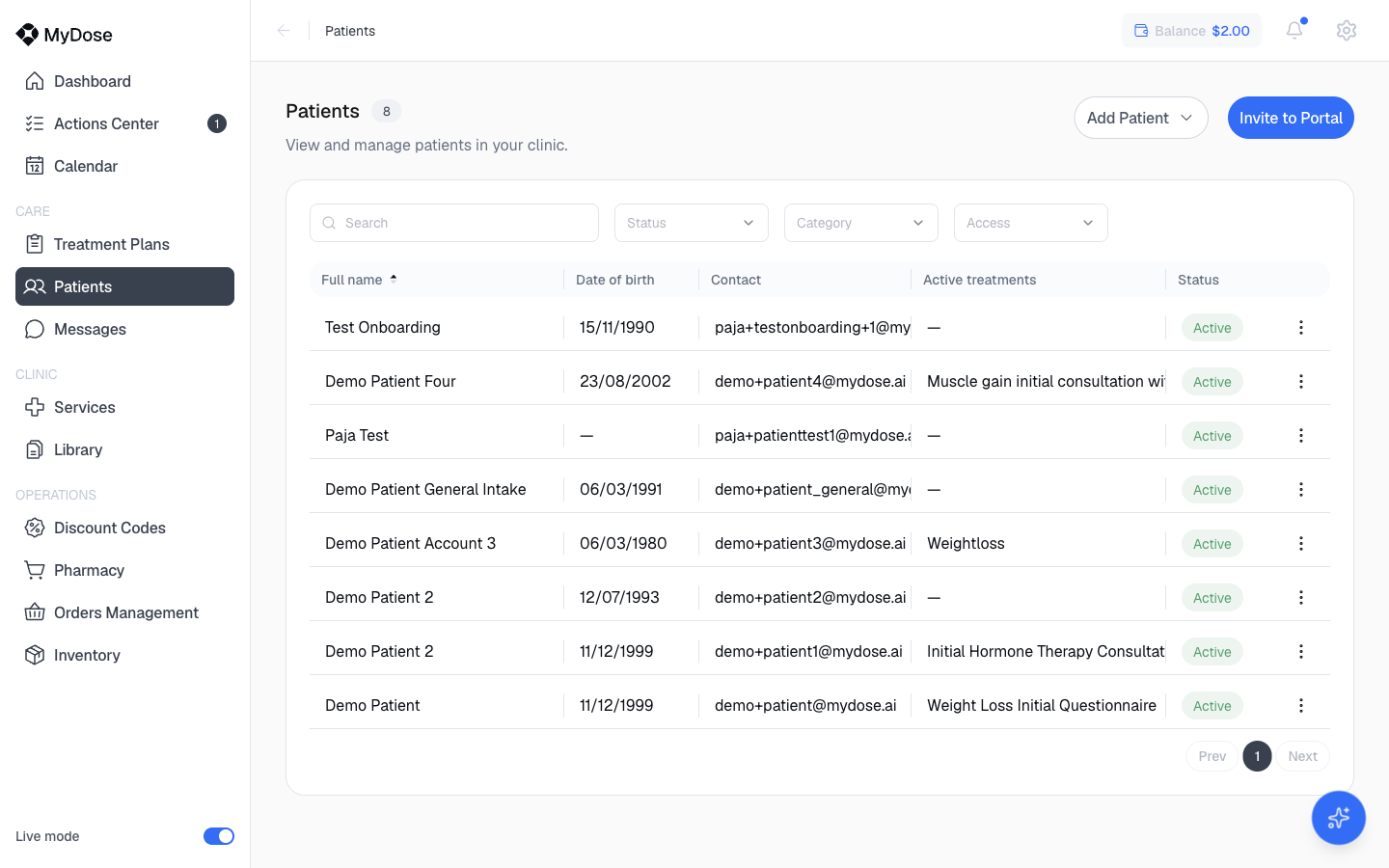
Read the list
Each row is one patient. The table shows:
| Column | What it shows |
|---|---|
| Name | The patient's full name. The column is sortable — toggle A-Z ordering. |
| Date of birth | The patient's date of birth. |
| The email address on file. | |
| Latest consultation | The most recent consultation or service, or — if there isn't one yet. |
| Status | The patient's current status, for example Active. |
| Patient actions | A per-row kebab menu with actions for that patient. |
Pagination controls sit at the bottom of the table — use Previous and Next to move between pages.
A — in the latest consultation column just means the patient hasn't had a consultation or service recorded yet — it's normal for newly added patients.
Search and filter
Search the list
Type in the Search box to narrow the list.
Apply filters
Use the Status, Category, and Access dropdowns to filter the list.
Sort the list
Toggle A-Z sorting on the name column.
Add patients
Two buttons at the top right cover intake:
- Add Patient — a dropdown with two options: Add a patient (create one patient with a name and email) and Import patients (bulk import).
- Invite to Portal — send a patient an invitation to their patient portal. Adding a patient does not grant portal access on its own; this is the separate step that does.
For the full walkthrough, see Add a patient.
Open a profile
Select any row to open that patient's profile, where you'll find their overview, health data, treatments, records, and orders. See Patient profile for a tour.
Related
Add a patient
Create patients one at a time, import in bulk, and invite them to the portal.
Patient profile
What's inside each patient's profile and its five tabs.
Patient health data
Weight and BMI history, conditions, labs, and medications.
Messaging
Chat with patients from Messages or directly from their profile.