Patient Orders
Read a patient's order history, unpaid orders, and current delivery from their profile, and start a new order with Order Products.
Every patient profile has an Orders tab that shows that patient's order history, any unpaid orders, and the status of their current delivery.
Where to find it
Open a patient's profile and select the Orders tab.
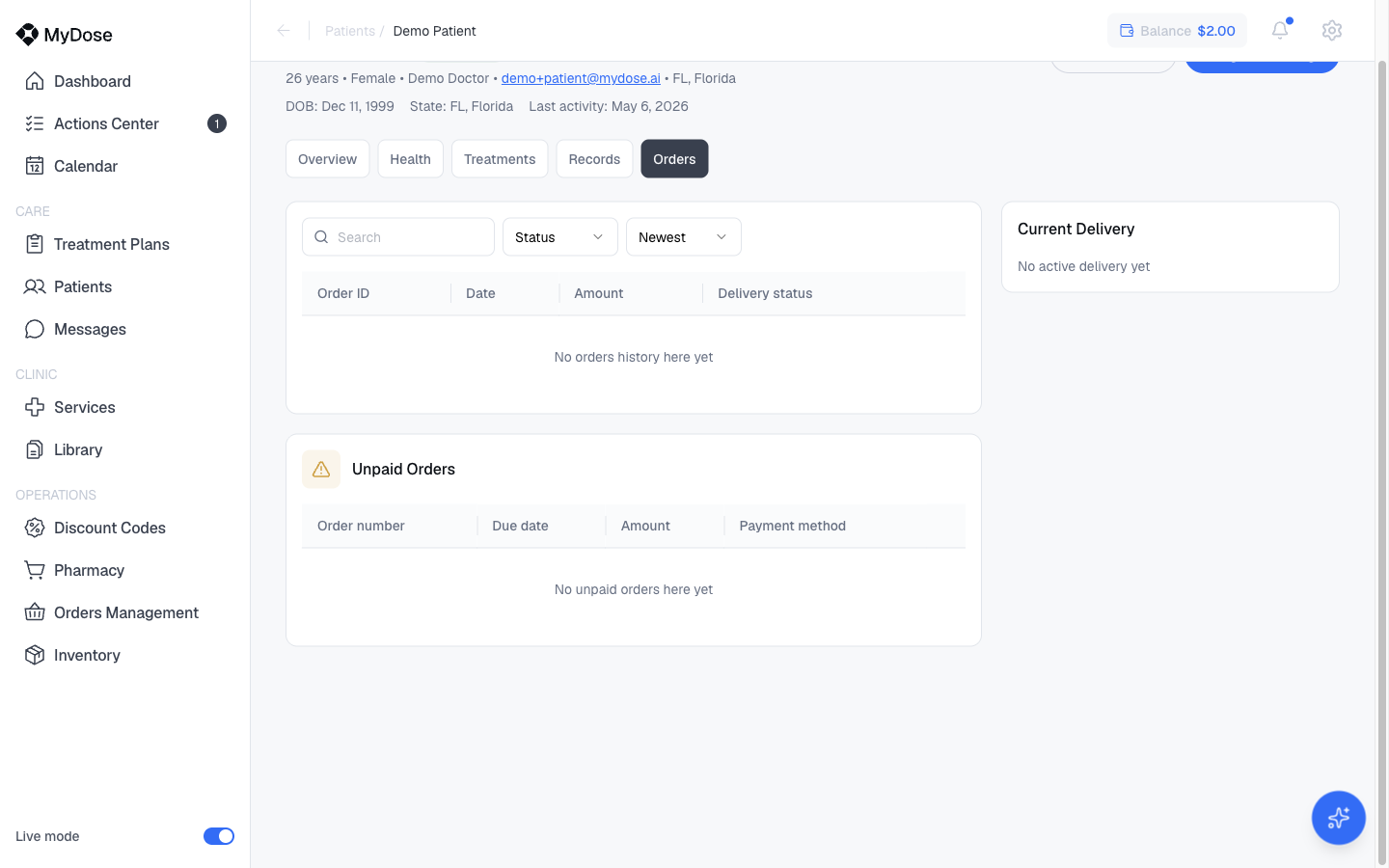
If you're not sure how to reach a profile, see Patient Profile.
Read the Orders tab
The tab is split into three sections:
| Section | What it shows |
|---|---|
| Order history | A table of the patient's past orders with columns Order ID, Date, Amount, and Delivery status. If the patient hasn't ordered yet, it reads "No orders history here yet". |
| Unpaid Orders | Orders awaiting payment, with columns Order number, Due date, Amount, and Payment method. |
| Current Delivery | The status of the patient's in-progress delivery. |
For your clinic's own charges and billing history, see Billing & Payments.
Place an order for a patient
Ordering starts from the patient's profile, not the Orders tab itself.
Open the patient's profile
Find the patient and open their profile.
Select Order Products
Select the Order Products button in the profile header.
Follow the order flow
Follow the on-screen flow to complete the order.
Clinic-wide view
The patient profile only shows one patient's orders. To see and search orders across all patients, open Orders Management from the sidebar — see Orders Management.