Calendar & Appointments
Read your daily schedule, book appointments for existing or new patients, and manage consultation types from the Calendar.
The Calendar is where you stay on top of your schedule — see the day's booked sessions, jump between dates, book new appointments, and manage the consultation types patients can book.
Where to find it
Sign in at app.mydose.ai and select Calendar in the sidebar.
Set your availability before anything else — patients can't book consultations until your weekly hours are saved in Calendar Settings. "Set up calendar availability" is also one of the four required setup items in clinic setup.
Read the calendar
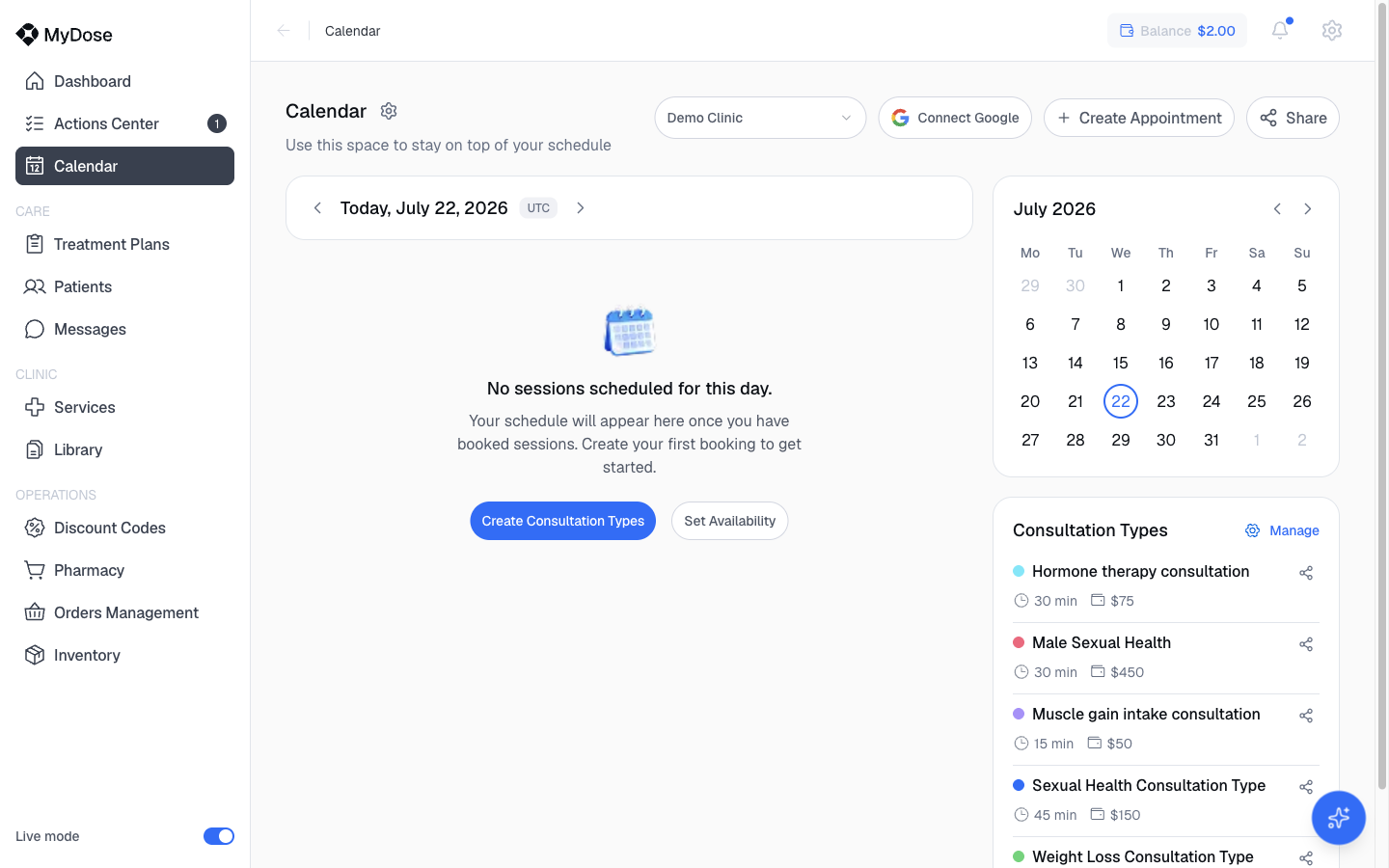
The main area is a day schedule (for example, "Today, July 22, 2026") with prev/next arrows to move between days and a time-zone chip showing which time zone the schedule is displayed in. The right column holds a mini month calendar for jumping to any date, and the top bar has a provider selector — it defaults to the clinic, and you can switch it to view an individual provider's schedule.
When nothing is booked for the day, the schedule shows "No sessions scheduled for this day. Your schedule will appear here once you have booked sessions." along with two shortcut buttons:
| Shortcut | What it does |
|---|---|
| Create Consultation Types | Define the bookable consultation types for your clinic |
| Set Availability | Set the hours you accept bookings |
Book an appointment
Open the booking dialog
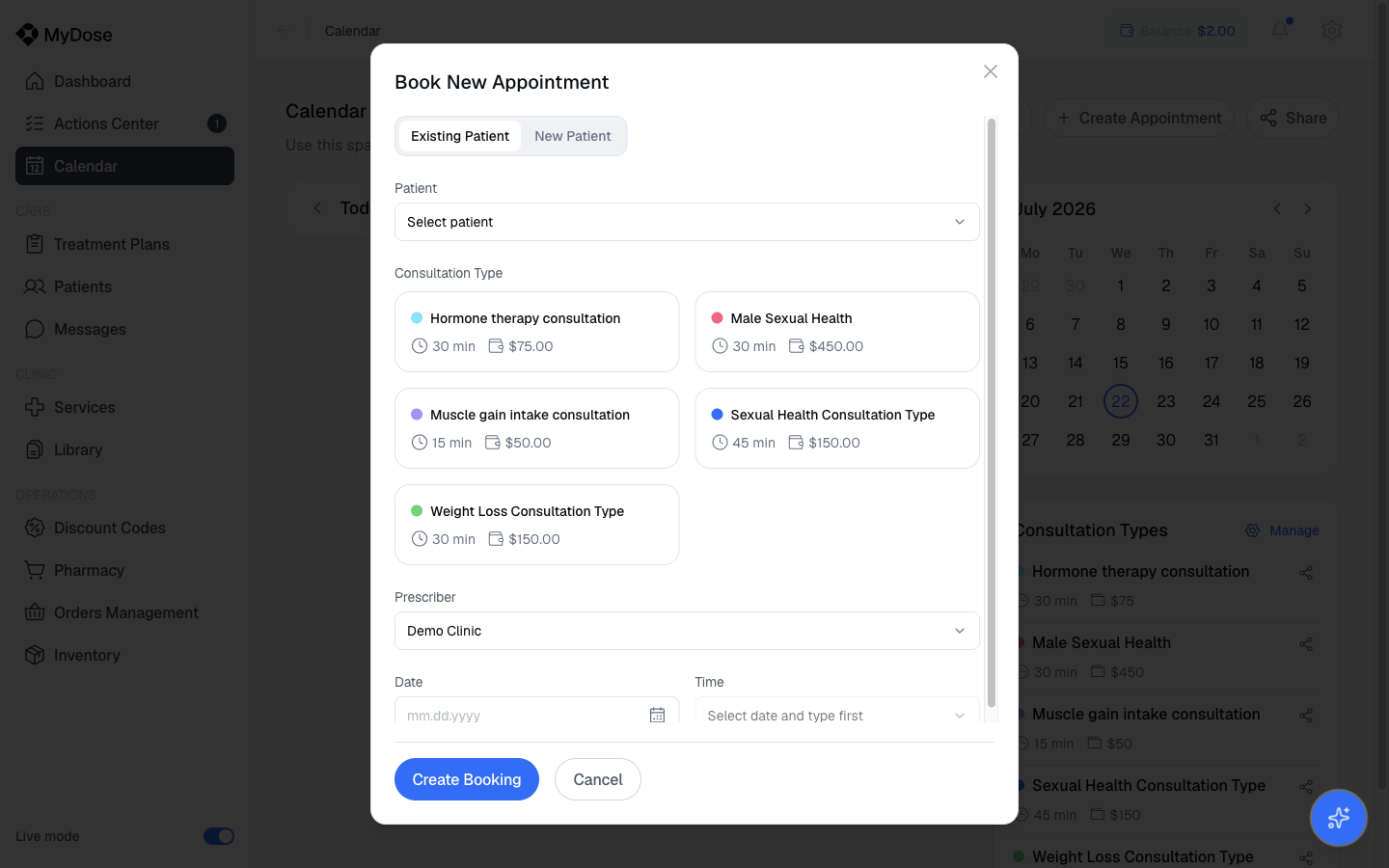
Select Create Appointment in the top bar. The Book New Appointment dialog opens.
Choose the patient
Pick the Existing Patient or New Patient tab, then use the Select patient dropdown to choose who the appointment is for.
Pick a consultation type
Select a type from the consultation-type picker — each option shows its duration and price.
Choose the prescriber and date
Select a prescriber from the prescriber dropdown, then enter the date (mm.dd.yyyy).
Pick a time slot
The time-slot dropdown stays disabled with "Select date and type first" until you've chosen both a date and a consultation type. Once it enables, select a time.
Create the booking
Select Create Booking to confirm, or Cancel to discard.
Consultation types
The Consultation Types panel in the right column lists every bookable type — each shows a color dot, the name, duration, and price, plus a share icon. Select the Manage link (gear) to open Calendar Settings.
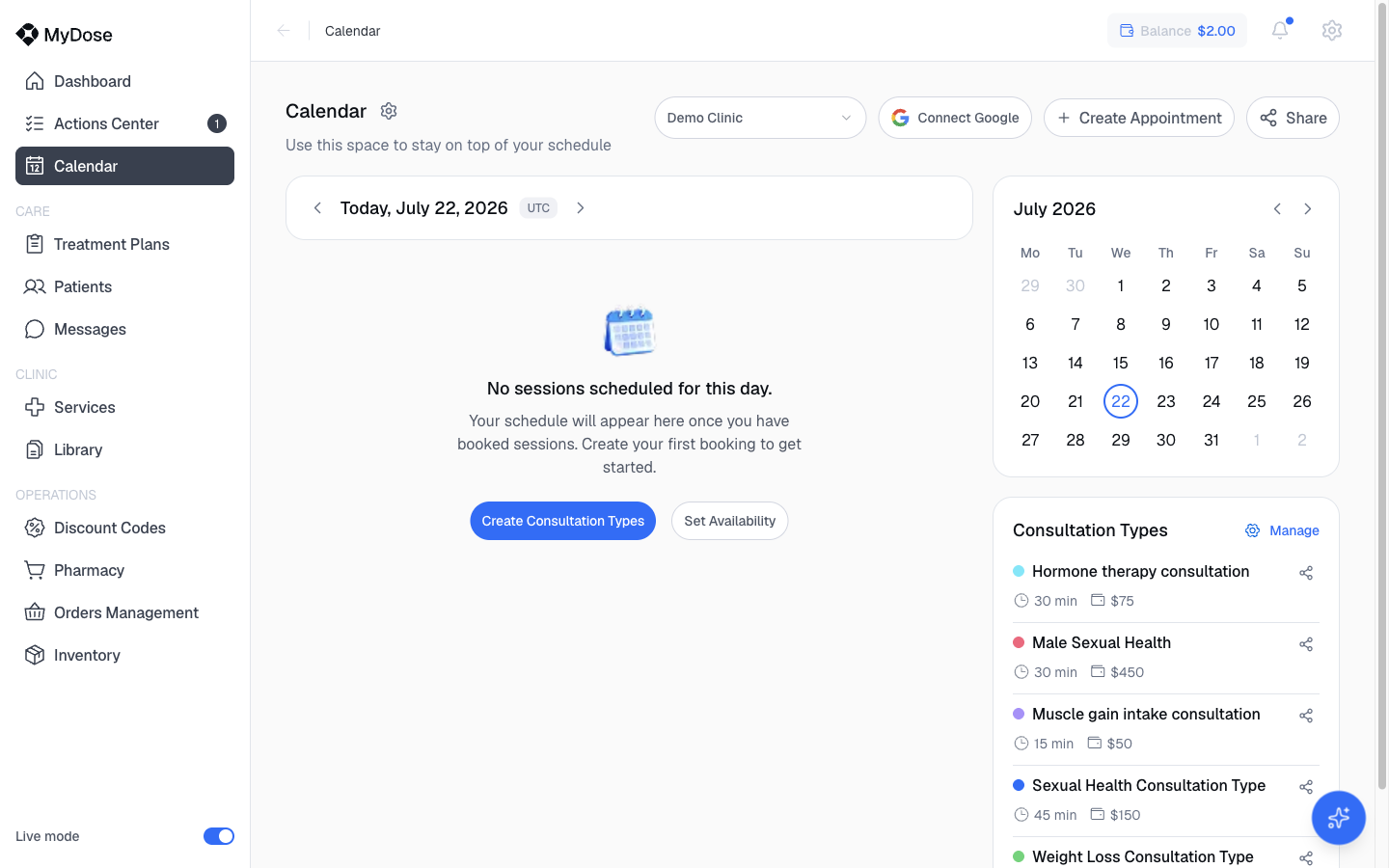
For example, a clinic's panel might look like this:
| Consultation type | Duration | Price |
|---|---|---|
| Hormone therapy consultation | 30 min | $75 |
| Male Sexual Health | 30 min | $450 |
| Muscle gain intake consultation | 15 min | $50 |
| Sexual Health Consultation Type | 45 min | $150 |
| Weight Loss Consultation Type | 30 min | $150 |
The types above are examples from a demo clinic — your clinic defines its own consultation types, durations, and prices.
Connect your Google calendar
Select Connect Google in the top bar to connect an external Google calendar.
Related
Calendar Settings
Set your time zone, weekly availability, date-specific overrides, consultation limits, and holidays.
Clinic setup
Finish the four setup items — including calendar availability — so patients can book.
Dashboard
The Appointments Today card links straight to your Calendar.
Actions Center
Work through treatment requests and other items that need attention.