Orders Management
Track your clinic's orders and your patients' orders from one page, with search, filters, and sorting.
Orders Management is a single page for tracking ordering activity across your clinic — both the orders your clinic places itself and the orders placed for your patients.
Where to find it
In the sidebar, under the OPERATIONS group, select Orders Management. If you don't see it, sidebar items are hidden or disabled based on a member's permissions — see Roles & permissions.
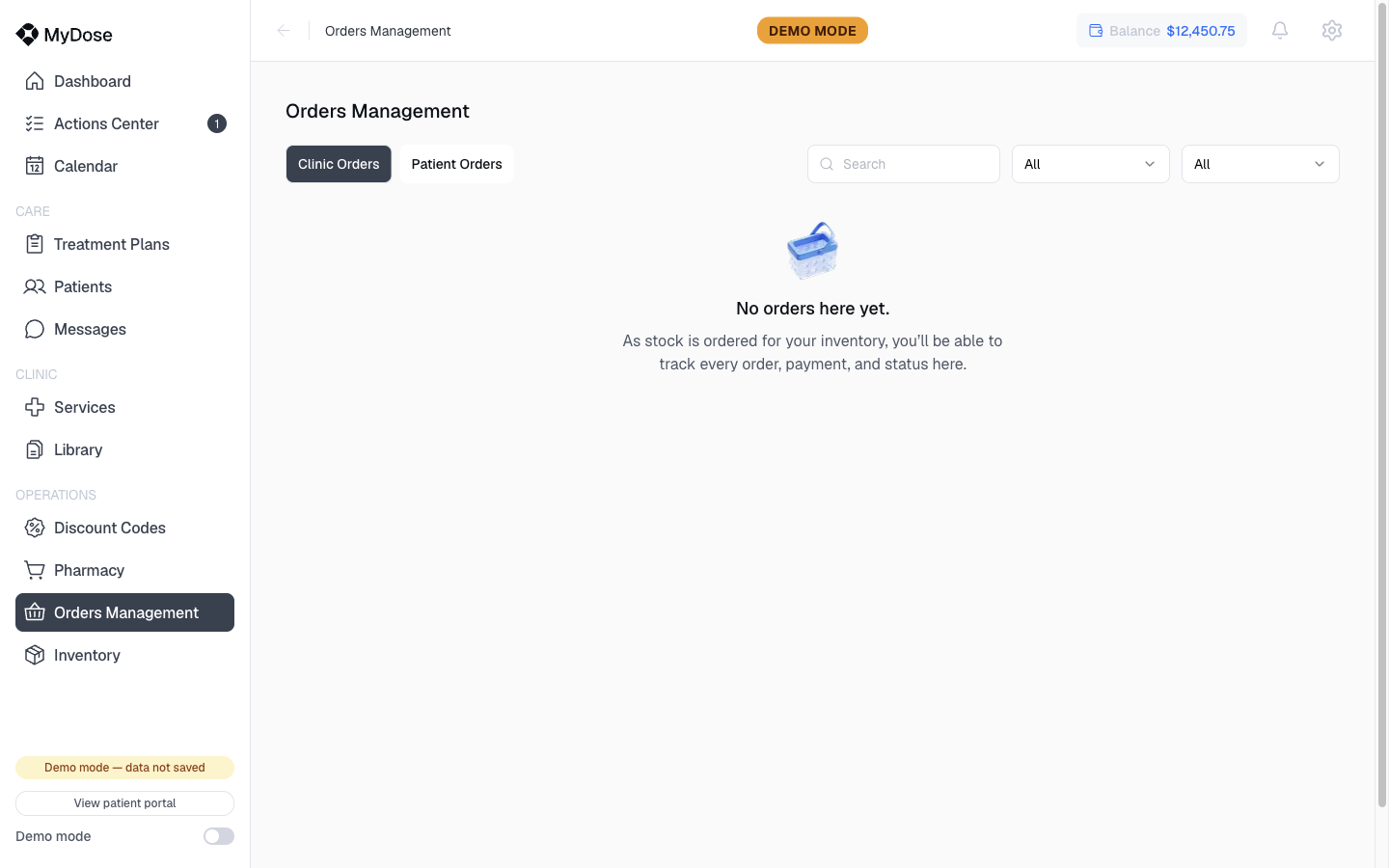
The two tabs
The page splits orders into two tabs:
| Tab | What it shows |
|---|---|
| Clinic Orders | Orders your clinic has placed itself |
| Patient Orders | Orders placed for or by your patients |
Both tabs include a Search box and filter dropdowns to narrow the list. The Patient Orders tab also has a Newest sort and an All filter.
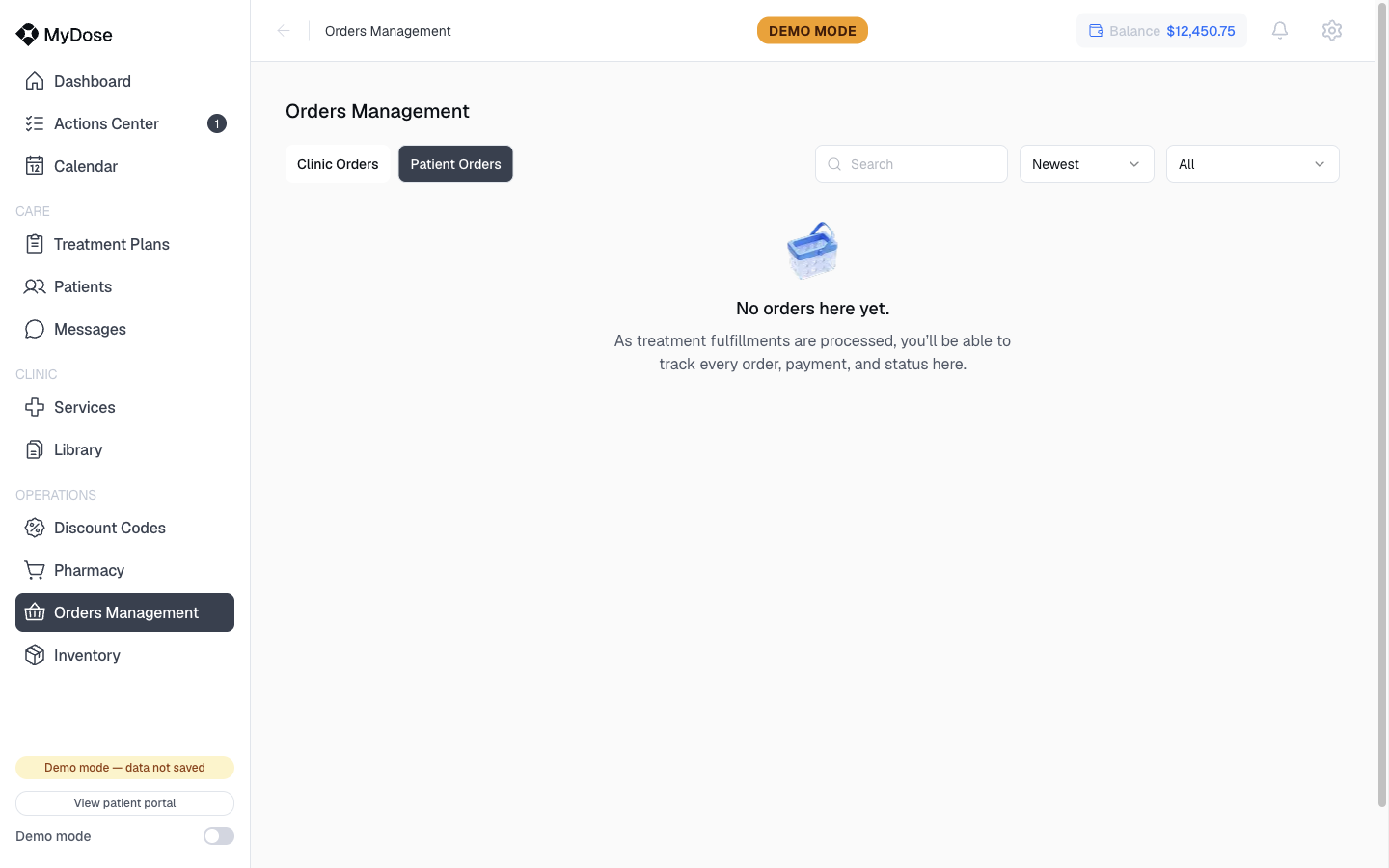
To find a specific order:
Pick the right tab
Select Clinic Orders for your clinic's own orders, or Patient Orders for orders tied to patients.
Search or filter
Type in the Search box, or use the filter dropdowns. On Patient Orders, use the Newest sort to bring the most recent orders to the top.
If your clinic hasn't placed any orders yet, both tabs show an empty state — that's expected for a new clinic. The lists fill in as orders are placed.
Orders on the patient profile
Each patient also has an Orders tab on their own profile, which holds that patient's order history along with unpaid orders and current delivery tracking. Ordering for a patient starts from the Order Products button in the patient profile header — see Patient orders for the details.
The Pharmacy and Inventory sidebar items also relate to fulfillment, but they aren't covered by this guide yet.