Library: Documents & Intake Forms
Store patient-facing documents and keep track of your clinic's intake forms in the Library.
The Library is your clinic's home for patient-facing documents and intake forms — use the Documents tab to upload and manage files, and the Intakes tab to see the intake forms your clinic uses.
Where to find it
In the sidebar, select Library under the CLINIC group. The Library opens with two tabs: Documents and Intakes.
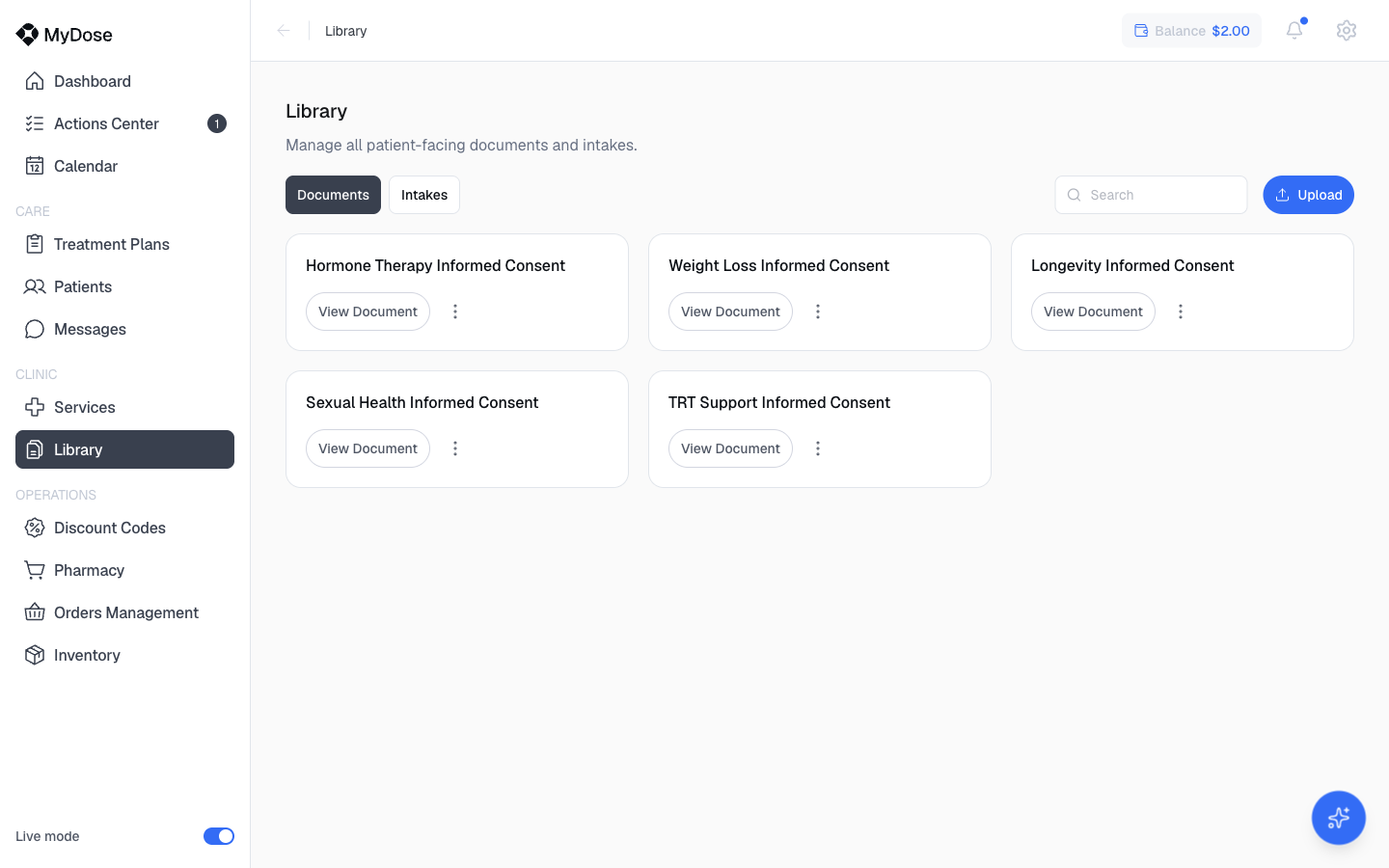
Documents tab
The Documents tab holds your clinic's patient-facing documents. From here you can:
- Search — find a document by name.
- Upload — add a new document.
- View Document — open a document to review it.
- More actions — additional options for each document.
Upload a document
Open the Library
In the sidebar, select Library.
Go to the Documents tab
Select the Documents tab.
Select Upload
Select Upload and follow the prompts to add your file.
Once uploaded, the document appears in the list with its own View Document and More actions controls.
Intakes tab
The Intakes tab lists your clinic's intake forms. Each form has a View in settings button — intake forms are edited in settings, and the Library lists them so you can see everything in one place.
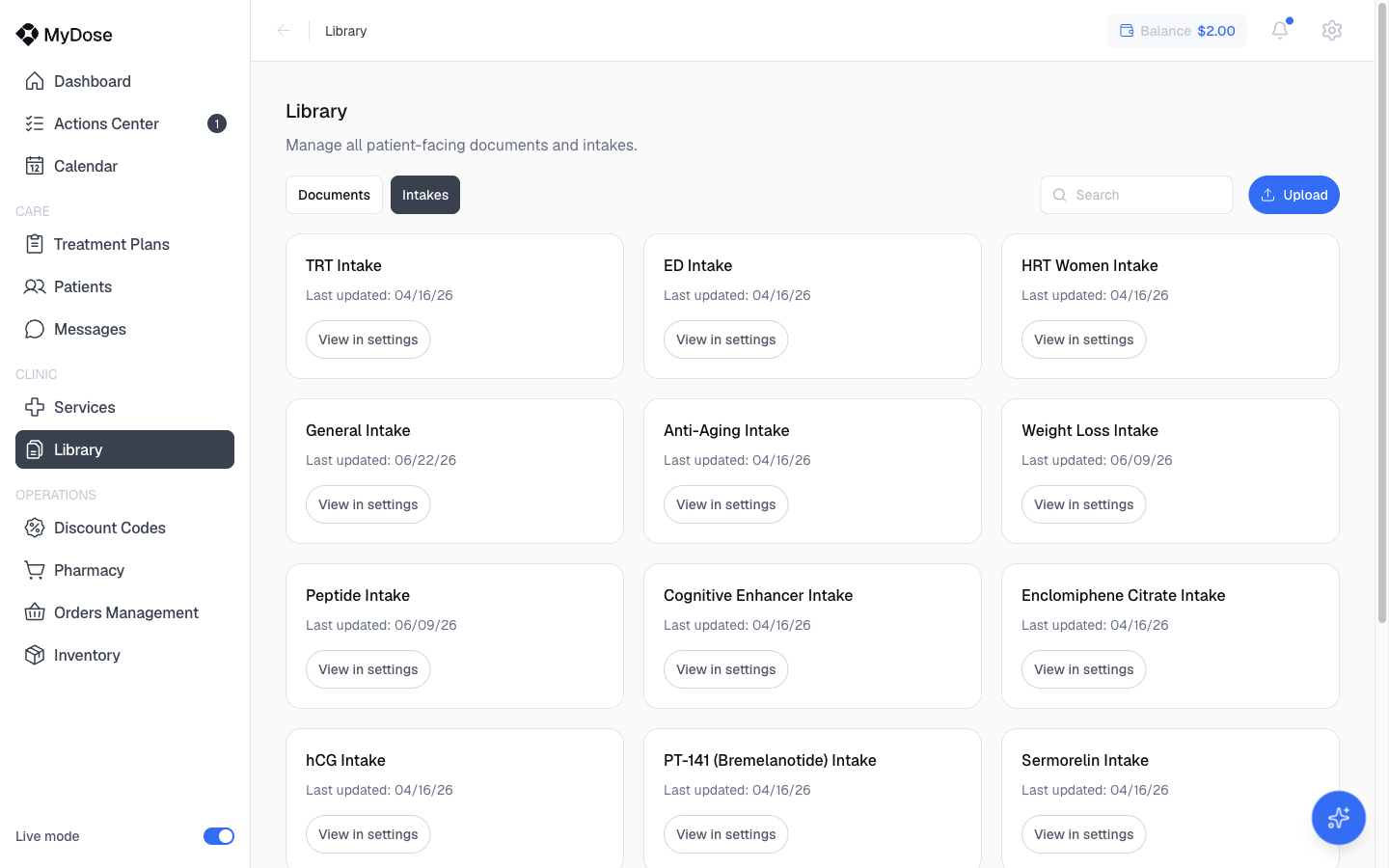
Intake forms attach to packages in the package wizard's Visit requirements step — see Create a service package.
| Tab | What it holds | Key actions |
|---|---|---|
| Documents | Patient-facing documents | Search, Upload, View Document, More actions |
| Intakes | Your clinic's intake forms | View in settings |
Consent forms are also selectable in the package wizard: the Visit requirements step includes a Select consent forms panel where you can attach informed-consent forms to a package alongside its intake form.