Billing & Payments
Connect Stripe, read your monthly bill, manage payment methods, and review your clinic's billing history.
The Billing & Payments page is where you connect Stripe, see what your clinic has been charged, manage saved cards, and download billing records.
Where to find it
Select the gear menu, then select Billing.
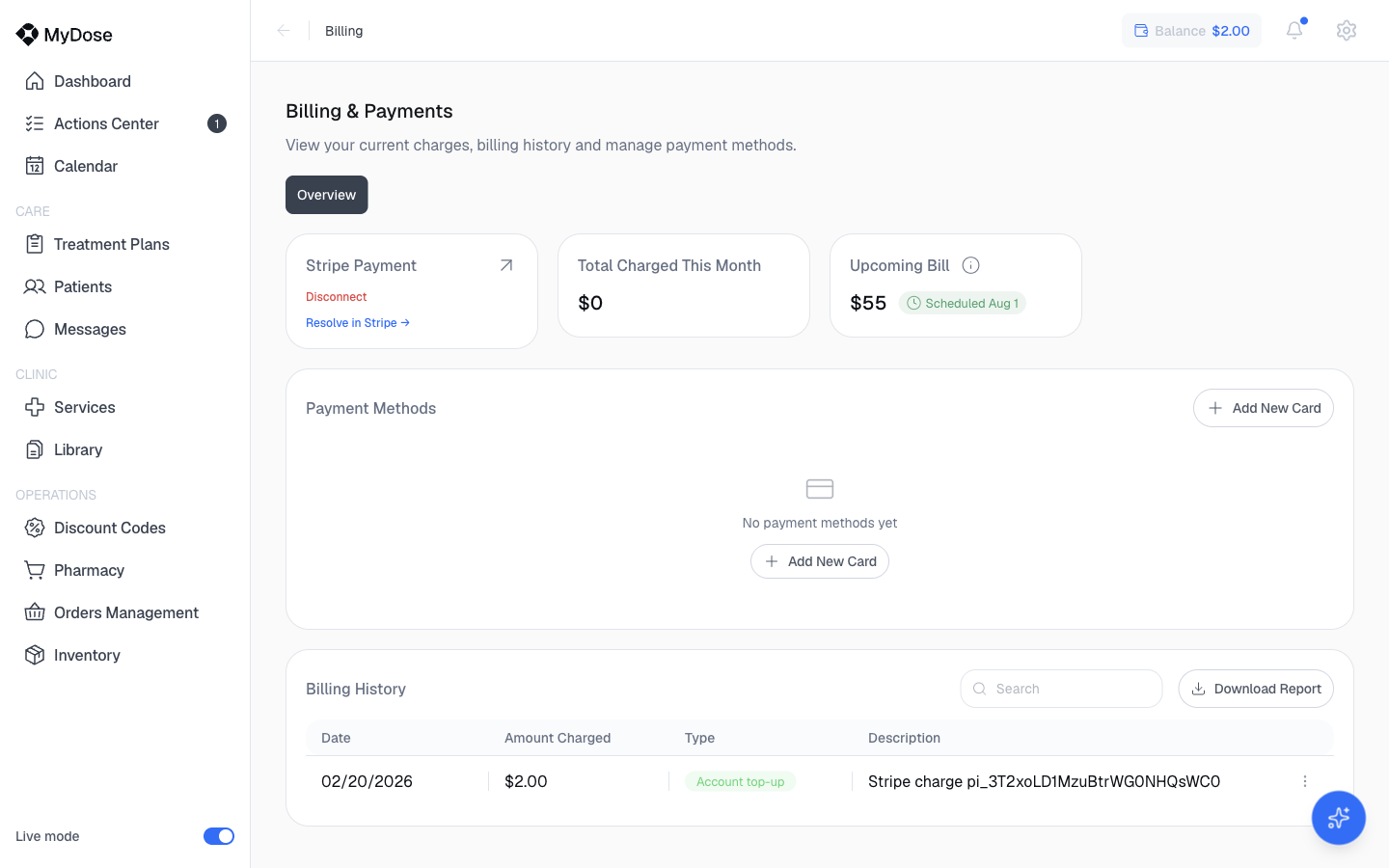
Connect Stripe
The Stripe Payment card at the top of the Overview tab shows your connection status. Until payment setup is complete, the card reads Setup incomplete, and an amber banner — "Finish Stripe setup to start accepting payments" — appears across every page of the portal.
Open the Stripe Payment card
From the gear menu, select Billing and find the Stripe Payment card on the Overview tab.
Finish what Stripe needs
Select Resolve in Stripe → on the card to complete any outstanding requirements. From anywhere in the portal, you can also select Continue setup on the amber banner.
Disconnect if you need to
Select Disconnect on the Stripe Payment card to remove the connection.
Payment setup is also one of the four items on your Getting Started checklist — "Add payment method — Required to start receiving payments from patients." See Clinic Setup.
Read your bill
Two figures on the Overview tab summarize your charges:
| Figure | What it shows |
|---|---|
| Total Charged This Month | What your clinic has been charged so far this month |
| Upcoming Bill | Your next charge — select View breakdown to see what makes it up |
Payment methods
The Payment Methods section holds the cards on file for your clinic. Select Add New Card to save a new card.
Billing history
The Billing History section lists every charge on your account. Use Search to find a specific transaction, or select Download Report to export the list.
| Column | What it shows |
|---|---|
| Date | When the charge happened |
| Amount Charged | The amount billed |
| Type | The kind of transaction — for example, Account top-up |
| Description | A description of the transaction |
For example, a $2.00 Account top-up appears with a Stripe charge reference. Each row also has Row actions.
Your wallet balance is separate from billing. Top-ups appear here as charges, but your current balance and its full history live on the Account Balance page — opened from the Balance chip in the header on every page.