Add a Patient
Add patients to your clinic individually or in bulk, then invite them to their own patient portal.
Adding a patient takes two fields — their full name and email address. Once they're in your Patients list, you can invite them to their own patient portal, assign packages, and create treatment plans.
Where to find it
Select Patients in the sidebar (under CARE). At the top right of the Patients page you'll find two buttons: Add Patient — a dropdown with Add a patient and Import patients — and Invite to Portal.
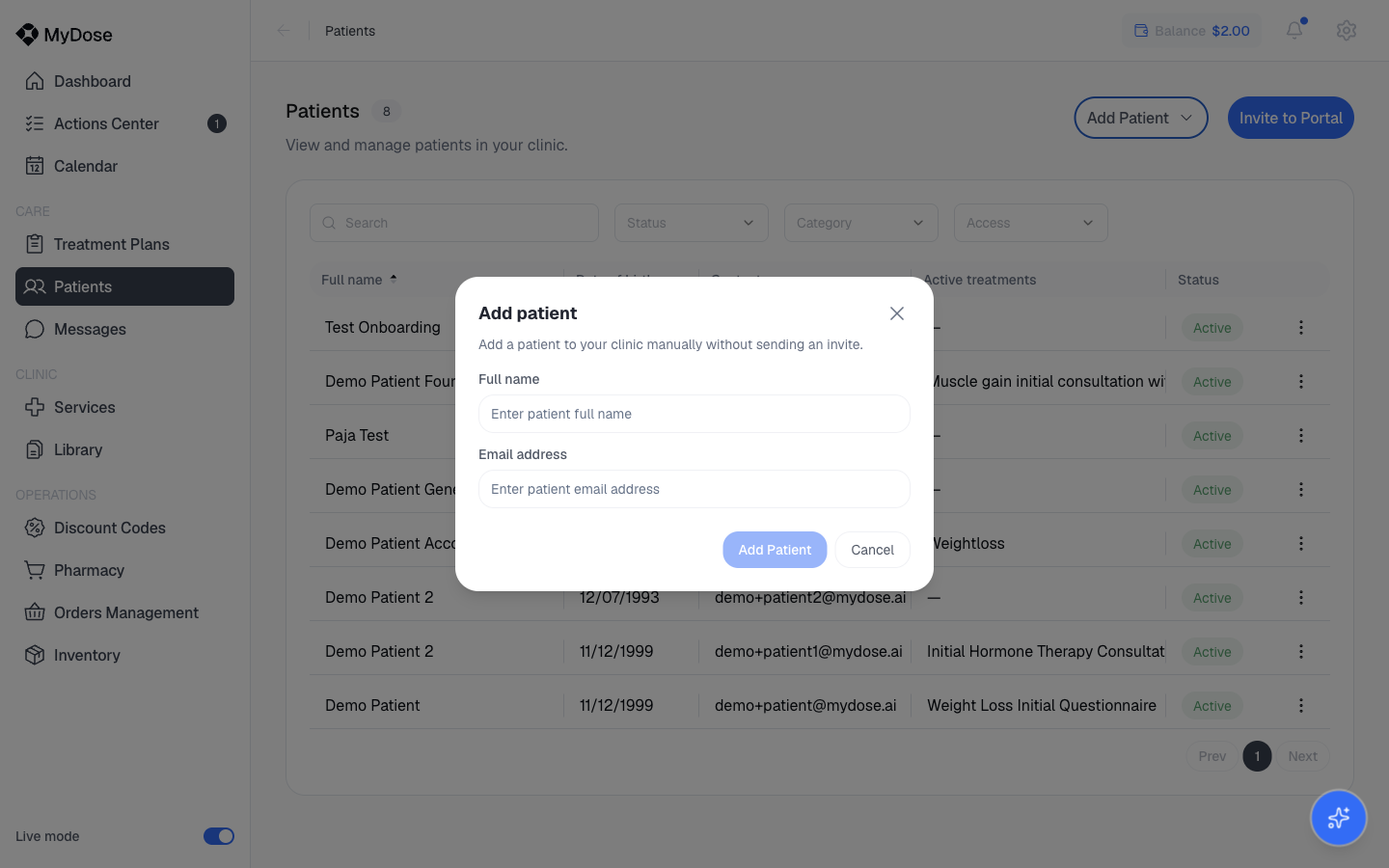
Add a patient
Open the Patients page
Select Patients in the sidebar.
Open the add panel
Select Add Patient, then choose Add a patient from the dropdown. The Add patient panel opens.
Enter the patient's details
Fill in the patient's full name and email address. The Add Patient button stays disabled until both fields are filled — select Cancel to discard instead.
Save the patient
Select Add Patient. The new patient appears in your Patients list, and you can open their profile by selecting their row.
Invite a patient to the portal
Adding a patient creates their record in your clinic — it doesn't automatically give them access to their own portal. To grant access, use the separate Invite to Portal button at the top of the Patients page and follow the prompts. Once invited, the patient can sign in to their own patient portal.
Import multiple patients
If you're bringing an existing patient list into MyDose, you don't have to add each person one at a time.
Open the import option
On the Patients page, select Add Patient, then choose Import patients from the dropdown.
Upload your patient list
Follow the on-screen instructions to upload your list. Imported patients appear in your Patients list alongside individually added ones.
Quick reference:
| Task | Path |
|---|---|
| Add one patient | Add Patient → Add a patient |
| Import a patient list | Add Patient → Import patients |
| Grant portal access | Invite to Portal |
Want to try this without touching real records? Switch to Demo mode using the toggle at the bottom of the sidebar and practice adding a test patient. See Navigating the portal for how the Live/Demo toggle works.
What happens next
With the patient added, you can open their profile from the Patients list and start their care:
- Assign a package to set up their program and billing.
- Create a treatment plan to define their medication and schedule.
- Review their patient profile to track health data, records, and orders as they come in.
Related
Patients list
Search, filter, and manage all of your clinic's patients.
Patient profile
Everything on a single patient — overview, health, treatments, records, and orders.
Assign a package
Put a new patient on one of your clinic's packages.
Create a treatment plan
Build a treatment plan for a patient's care.