Dashboard
Read your clinic's key stats, see today's appointments and urgent tasks, review your treatments breakdown, and finish account setup — all from the Dashboard.
The Dashboard is your clinic's home page — a single view of your patient stats, today's appointments, urgent tasks, and anything left to set up.
Where to find it
The Dashboard is the first page you see after signing in. To return to it from anywhere in the portal, select Dashboard at the top of the sidebar.
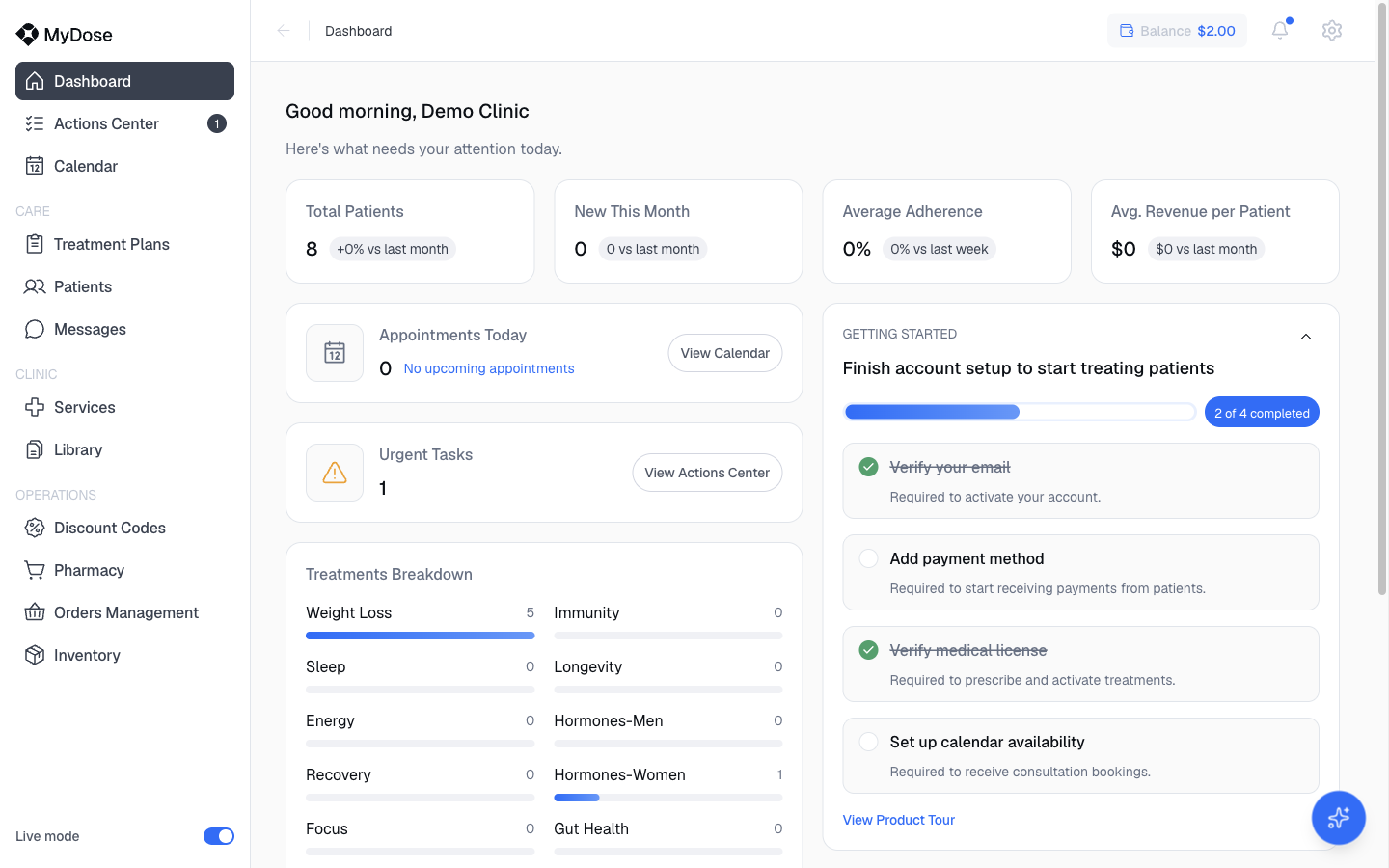
At the top of the page you'll see a greeting — "Good morning, <your clinic>" — followed by "Here's what needs your attention today."
Read the stats at a glance
Four stat cards sit at the top of the Dashboard. Each includes a chip comparing the value to the last period, so you can see trend at a glance.
| Stat card | What it tells you |
|---|---|
| Total Patients | The total number of patients at your clinic. |
| New This Month | How many patients joined in the current month. |
| Average Adherence | How consistently your patients are keeping up with their treatments, on average. |
| Avg. Revenue per Patient | The average revenue each patient generates for your clinic. |
Act on today's work
Two cards surface what needs your attention right now:
- Appointments Today — shows how many appointments are scheduled for today. Select View Calendar to open your schedule — see Calendar. When nothing is booked, the card reads "No upcoming appointments".
- Urgent Tasks — shows how many open items are waiting on you, such as intakes to review. Select View Actions Center to work through them — see Actions Center.
Review the Treatments Breakdown
The Treatments Breakdown chart shows your active treatment counts by category — for example Weight Loss, Sleep, Energy, Hormones-Men, and Hormones-Women.
Use the 3M / 6M / 1Y selector to change the time range the breakdown covers.
Finish setting up
Until your account setup is complete, the Dashboard shows a GETTING STARTED card — "Finish account setup to start treating patients" — with a progress indicator ("N of 4 completed") and the four setup items:
- Verify your email
- Add payment method
- Verify medical license
- Set up calendar availability — required to receive consultation bookings
To work through these items, use the Viva sparkles button in the bottom-right corner to resume clinic setup. For the full walkthrough of every setup requirement, see Clinic setup.
The Viva sparkles button in the bottom-right corner resumes clinic setup at any time. Once all four items are done, the GETTING STARTED card disappears from the Dashboard.
Take the product tour
Open the tour
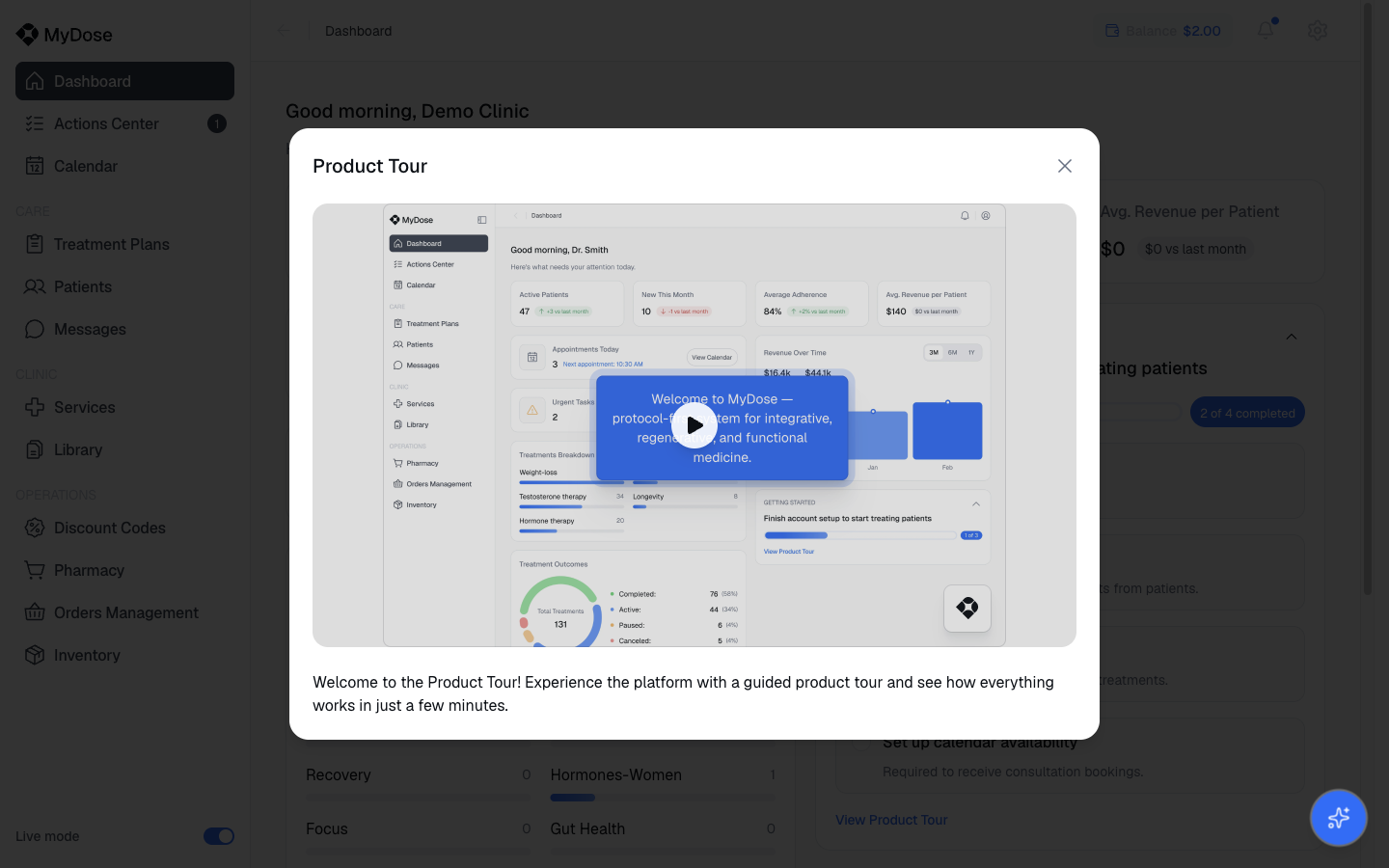
Select View Product Tour on the Dashboard. The Product Tour dialog opens with an embedded Clinic Walkthrough video.
Play the video
Select Play product tour to start the walkthrough.