Edit your store
Open the visual editor, change a page, then save, schedule and publish.
The store editor is a visual page builder. It opens from your dashboard already signed in, so there is no second password.
Before you start
- Your brand kit is set and your products are chosen.
- Your store exists. It is created at the end of the setup wizard.
Open the editor
Go to Storefronts
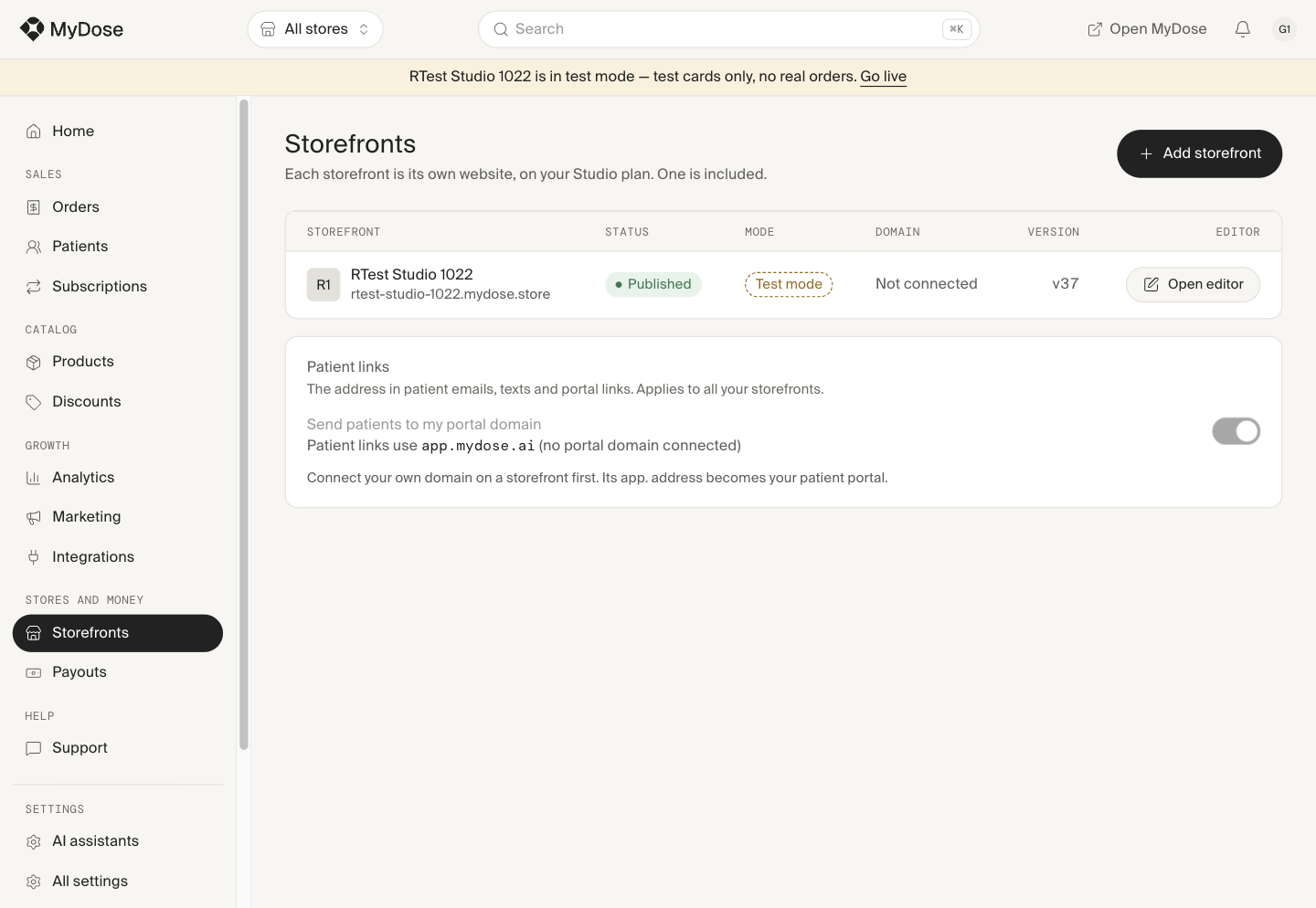
In your dashboard sidebar, select Storefronts, then the store you want to edit.
Select Edit store
The editor opens at your store's admin address in a new tab.
Choose a page
Pick a page from Pages, or create a new one.
The editor works while your store is in test mode. A Sandbox badge shows at the top right.
Edit a page
Select a block
Click any block on the page. Its settings open on the right.
Change the content
Edit text, images, buttons and links in the settings panel.
Add or reorder blocks
Use the left rail. Blocks adds sections. Outline shows the order of blocks on the page.
Check every screen size
Switch between desktop, tablet and phone previews at the top.
Save a block to reuse
Use the toolbar above a block to duplicate it, delete it or save it as a reusable section.
More than 80 ready-made blocks are available: heroes, steps, FAQs, pricing, reviews, forms and more, plus sections for disclosures, state availability and provider notices. These are starting points, not legal advice. Have your counsel review your disclosures.
Save, schedule and publish
| Action | What it does |
|---|---|
| Save draft | Keeps your work private. The live page does not change. |
| Publish | Puts the page live on your store. |
| Schedule | Publishes at a date and time you pick, in your local time. |
| History | Keeps every save. Restoring a version brings it back as a new draft. |
| Trash | Holds deleted pages so you can restore them. |
Starter pages
A new store starts with Home, About Us, Contact, FAQ, Terms of Service, Privacy Policy, Telehealth Consent, Refund Policy and Notice of Privacy Practices. The legal pages are starter text. Review them with your own counsel before you go live.
What you'll see
A page preview in the centre, blocks listed on the left, settings on the right. After Publish, the public page changes.
What happens next
Set your theme and menus in Theme, menus and templates, then add search settings in SEO and pages for ads.
Common problems
| Symptom | Fix |
|---|---|
| I do not see my edits | Select Publish. Saving a draft does not change the live store. Clear your browser cache and reload. |
| I deleted a page by mistake | Open Trash and restore it. |
| I want an earlier version back | Open History, restore a version, then Publish. |
| The editor will not open | Sign in to your dashboard again, then select Edit store. |
| I changed a price in text and it does not match | Use the product block so the price stays in step. See Set prices. |
Medical services provided by independent licensed providers.