SEO and pages for ads
Set search titles and share images, and mark general pages for ad platforms.
Two settings help people find your store: search settings on every page, and a switch that marks pages with no health content for ad platforms.
Before you start
- You have published at least your Home page. See Edit your store.
- Read Compliance for brand owners. You are responsible for the claims in your ads.
Set search and social settings
Open a page
In the store editor, open the page you want to set up.
Open SEO
On the page, open SEO.
Fill the fields
Set the title, description, share image, canonical address, and the setting that hides the page from search engines.
Read the checklist
A checklist shows live hints, such as title length. Hints never block saving or publishing.
Publish
Select Publish so the settings go live.
Mark a general page for ads
Ad platforms count page visits only on pages with no health content. The General page (ad landing) switch marks a page as one with no health content. Studio checks the page again each time you publish.
Pick a page with no health content
Home, About, Contact, FAQ and legal pages are the usual choices.
Turn on General page (ad landing)
Switch it on in the page settings, then Publish.
Connect a platform (optional)
Open Integrations in the sidebar. It lists Google (Ads + Analytics), Meta (Facebook / Instagram) and TikTok. Use a key to enter the ids the platform gives you.
This switch does not promise that an ad platform will approve your ads. Use it only for pages with no health content. Follow each platform's rules in your own ads.
What platforms receive
Studio sends page visits only, and only from general pages. It never sends sign-ups, purchases or any patient information to ad platforms. The visitor's cookie consent applies. The Integrations page shows when page visits are off platform-wide; they stay off until MyDose switches them on.
To read your results, see Analytics and Marketing in the sidebar. They show visits, sign-ups and orders by source as totals, never as patient rows.
What you'll see
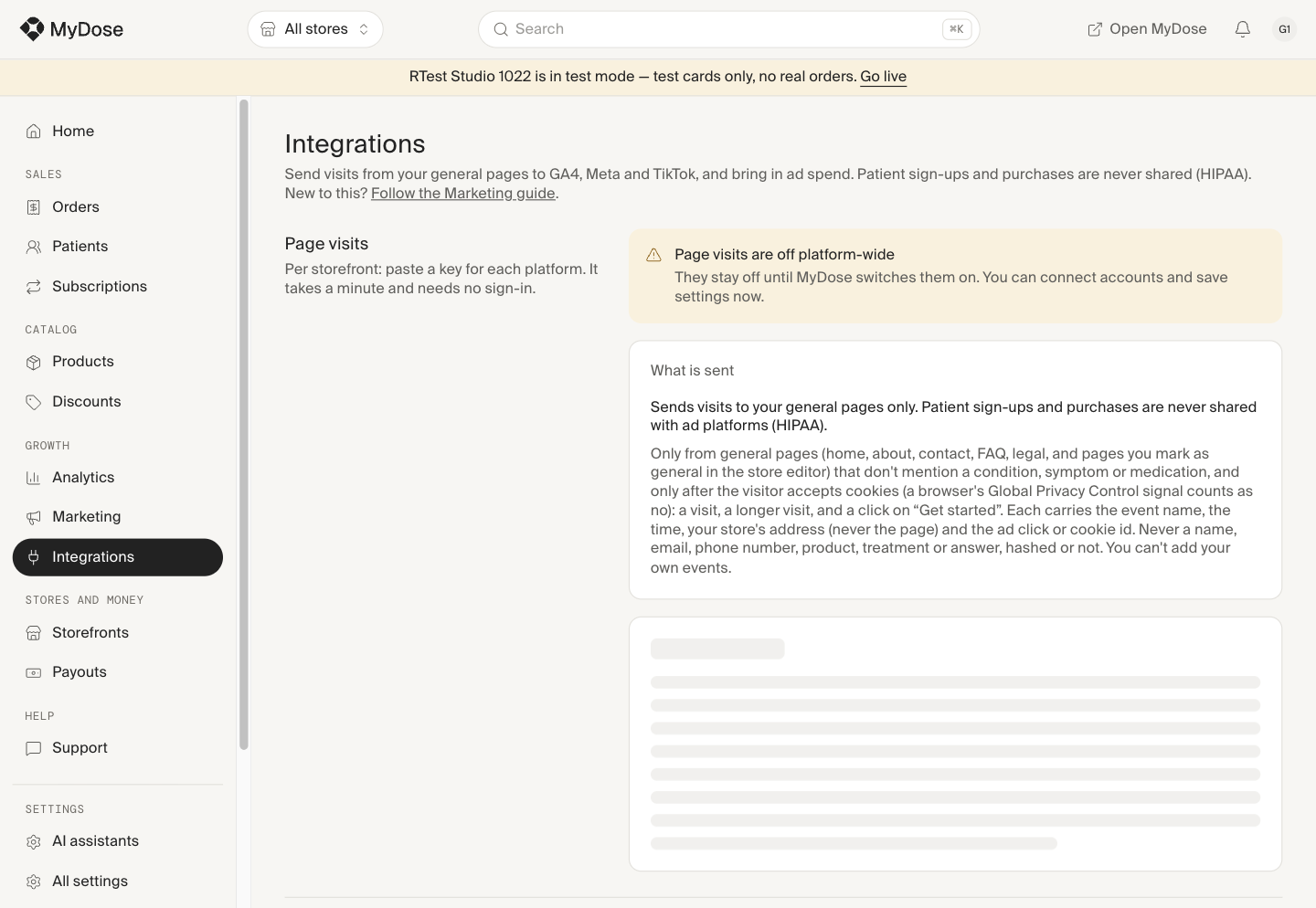
Hints in the SEO panel. A page marked as a general page. On Integrations, a note that page visits are off platform-wide if the feed is not turned on.
What happens next
Build links with the UTM builder under Integrations and share them. See First patient playbook.
Common problems
| Symptom | Fix |
|---|---|
| My title is flagged as too long | Shorten it. The hint is advice and does not block publishing. |
| I turned the switch on and the page was flagged | The page may contain health content. Remove it, or turn the switch off. |
| Connect says sign-in coming soon | Paste a key instead. |
| I see no ad data in Analytics | Check that your links use UTM tags and that visits came from those links. |
| My ad was disapproved | Platforms decide. Check your ad text against their rules and Compliance for brand owners. |
Medical services provided by independent licensed providers.