Patients, orders and support
Where to see orders and patients, and who answers which questions.
After you go live, your day-to-day work is in four places: Orders, Patients, Subscriptions and Support.
Before you start
Your store is live. See Test mode and going live.
See your orders and patients
Open Orders
In the sidebar, select Orders. Each order shows its status. Use the source columns to see where it came from.
Open Patients
Select Patients to list the people who signed up on your storefront.
Open Subscriptions
Select Subscriptions for recurring orders.
Open Analytics and Marketing
Analytics and Marketing show visits, sign-ups and orders by source, as totals without patient-level detail.
Some pages that show patient details require a team member with the right role. See Team and roles.
What the funnel counts
Analytics shows five stages: Started intake, Finished intake, Approved by a provider, Started treatment, and Still on treatment after 90 days.
Who answers questions
| Question type | Who answers | Where |
|---|---|---|
| Medical (symptoms, dosing, side effects) | MyDose's care team | The patient portal. It does not appear in your dashboard. |
| Non-medical (orders, shipping, billing) | You | Read in Support, then reply in your MyDose clinic dashboard. |
Open Support
In the sidebar, select Support. It lists who wrote, the date and whether it is unread. It never shows the message text.
Open MyDose
Use Open MyDose to sign in to your MyDose clinic dashboard in one click.
Reply there
Open the conversation under Messaging and reply. Replies are not sent from Studio.
Do not give patients medical advice. Send medical questions to the MyDose care team.
Emails your patients receive
Patients receive emails from the platform, branded with your store. Under Notifications you control two switches: the daily summary to you (on by default) and abandoned sign-up reminders to patients (off by default). Test mode sends no patient emails.
Your patients' address
Patients use <your-store>.mydose.store for your storefront and <your-store>-app.mydose.store for the patient portal.
What you'll see
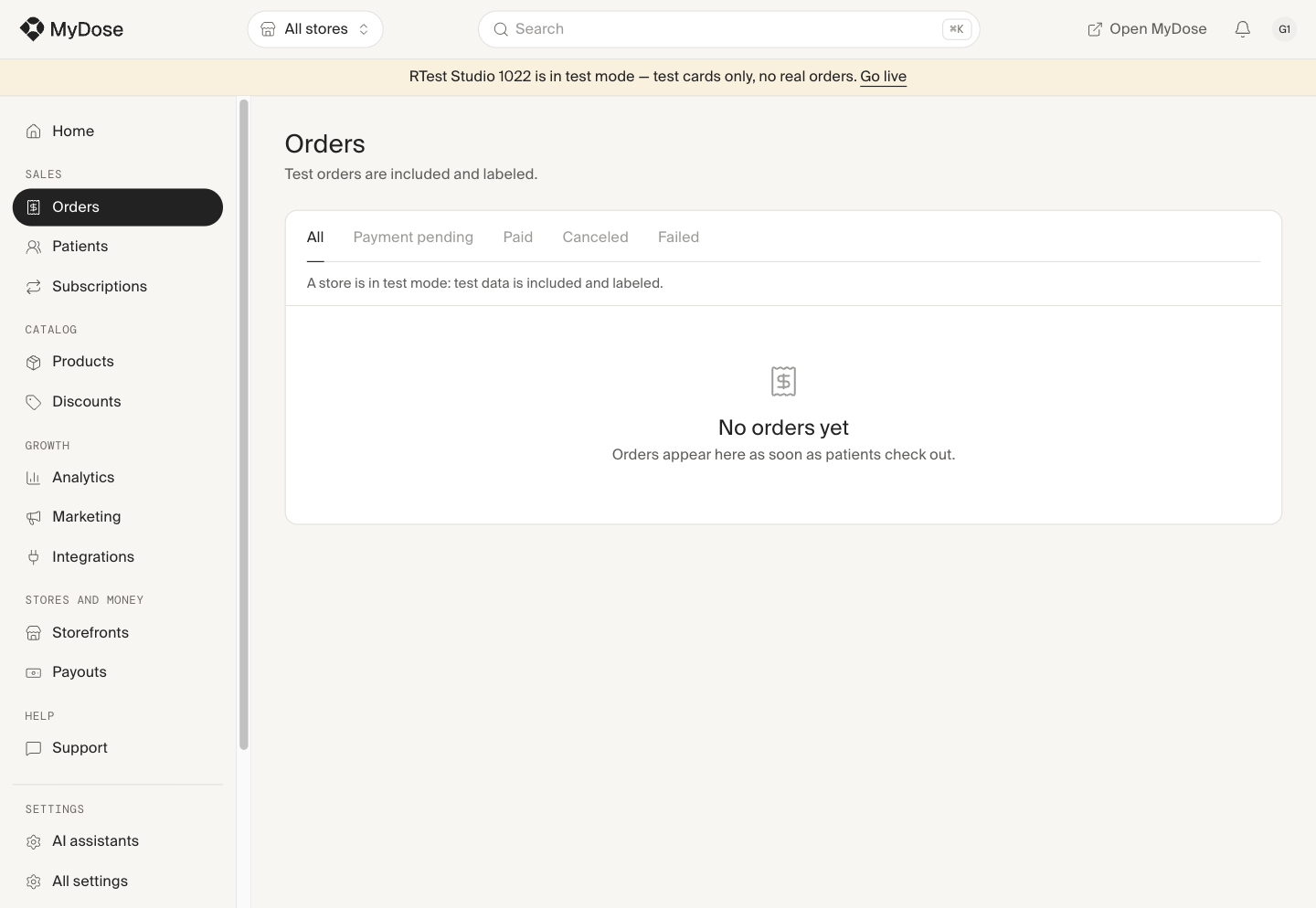
New orders show in Orders.
What happens next
When a patient is approved, the pharmacy fulfills the order. Money flows to Payouts. See Payouts.
Common problems
| Symptom | Fix |
|---|---|
| I cannot read a message in Support | Support shows metadata only. Open it through Open MyDose. |
| A patient asks a medical question | Do not answer. Tell them to use the medical question option in their portal. |
| A patient cannot find the portal | Send them <your-store>-app.mydose.store. |
| I do not see an order | Check the test toggle in Analytics and that the store is live. |
| A patient wants a refund | Follow your Refund Policy page. |
Medical services provided by independent licensed providers.