Build with an AI assistant
Connect an AI assistant to Studio and use it to edit your store.
You can connect an AI assistant to your Studio account. It can read your data and, with the right permissions, edit pages and settings for you.
Before you start
- You are an Owner or Admin. Writes need one of these roles. Staff can only read.
- An AI client from the list below.
- Know what you want changed. Start small, such as one page.
Supported clients
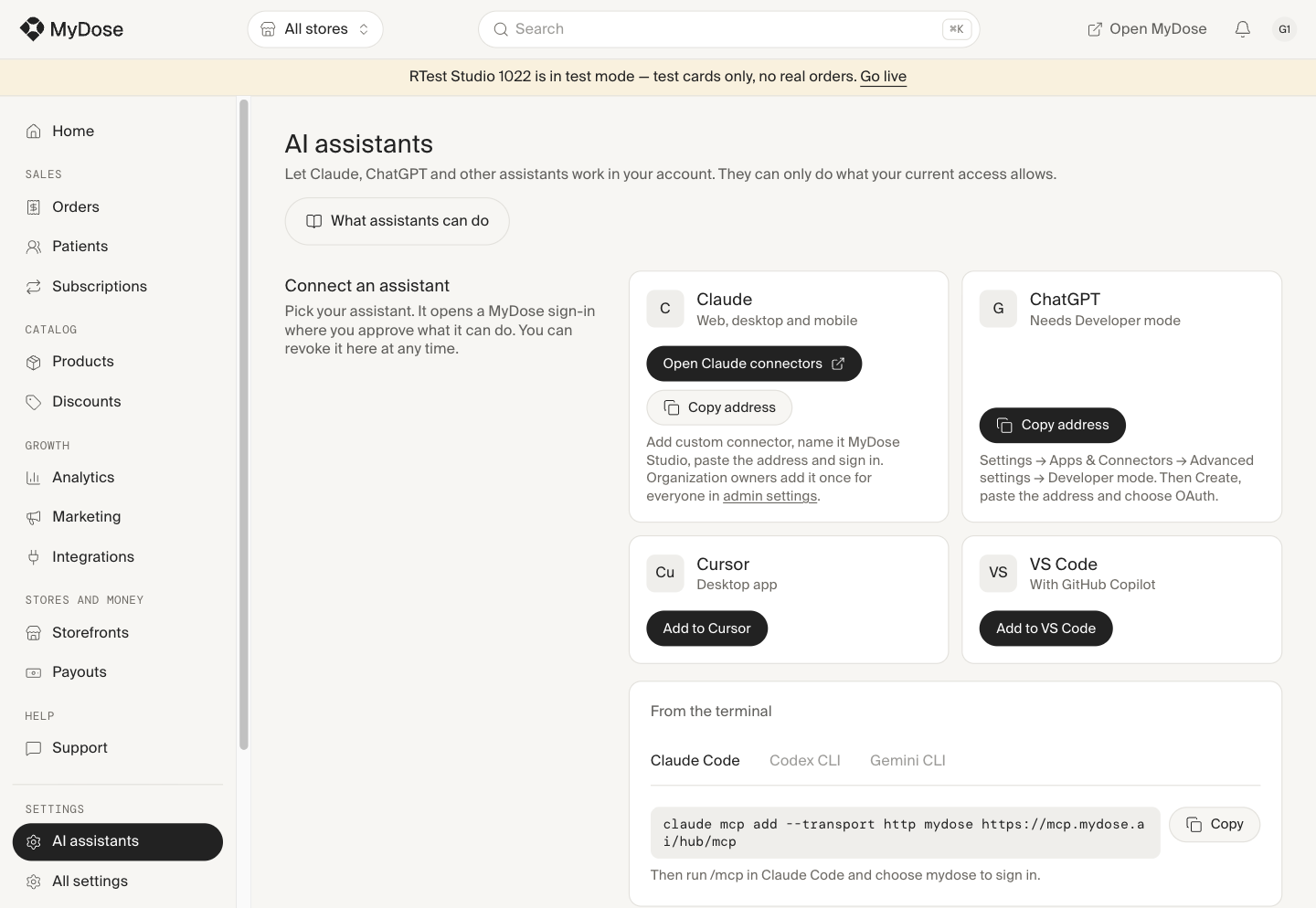
Open AI assistants in the sidebar under Settings. It lists:
- Claude (web, desktop and mobile)
- ChatGPT (needs Developer mode turned on)
- Cursor
- VS Code with GitHub Copilot
- Claude Code
- Codex CLI
- Gemini CLI
The address your client connects to is:
https://mcp.mydose.ai/hub/mcp
Connect with sign-in
Open AI assistants
In your dashboard sidebar, select AI assistants.
Choose your client
Pick the client you use and follow the instructions shown.
Add the address
In your client, add a connector or server using the address above.
Sign in and approve
A consent screen asks which store to allow and whether access is read-only or full. Choose read-only to start. Approve.
Test it
Ask something harmless, such as "List the pages on my store."
The exact steps depend on your assistant. The AI assistants page shows them for Claude, ChatGPT, Cursor and VS Code.
For Claude Code, the command is:
claude mcp add --transport http mydose https://mcp.mydose.ai/hub/mcp
Connect with a pasted key
Some clients cannot sign in. You can create a key on the AI assistants page and paste it into the client. A pasted key lasts 1 to 30 days, and the default is 7 days. Access tokens from sign-in last 1 hour and renew. You can revoke any key on the same page.
Treat a key like a password. Do not paste it into chat, email or a shared document.
What an assistant can do
- Read orders, patients (as totals and lists you can already see), payouts, funnel and attribution.
- Create, edit, duplicate and publish pages, edit your theme and menus, upload images and manage redirects.
- Create discounts, invite team members and save your brand kit.
What it cannot do
- Touch payments, bank details, card entry, signup or terms, or the go-live checkout. These stay in the normal screens.
- Read clinical records.
- Upload a file over 4 MB or any SVG.
Safety rules
- A read-only connection cannot change anything.
- Destructive actions, such as deleting or canceling, first return a confirm code. Repeat the request with the code within 5 minutes.
- Review every change before you publish. The assistant works on your live store.
Example requests
- "Rewrite the About page in a plainer tone. Do not name any medications or promise results."
- "Add an FAQ block to the Home page with these three questions."
- "Add a redirect from /old-page to /about."
What you'll see
Your client confirms each action it takes. Edits show in the store editor under History, where you can restore an earlier version.
What happens next
Read your pages yourself against Compliance for brand owners before you publish anything an assistant wrote.
Common problems
| Symptom | Fix |
|---|---|
| The assistant says it cannot write | Check your role and that the connection is not read-only. Reconnect with full access. |
| A confirm code expired | Ask again. Codes last 5 minutes. |
| The client cannot connect | Check the address. For ChatGPT, turn on Developer mode. |
| My key stopped working | Keys expire after 1 to 30 days. Create a new one. |
| An image upload fails | Keep files under 4 MB and use PNG, JPG or WebP. |
Medical services provided by independent licensed providers.