Launch quickstart
Create an account, approve your page, add payouts and share your link.
This is the short path. Each step links to a full page. For a tick-box version, use the Getting started checklist.
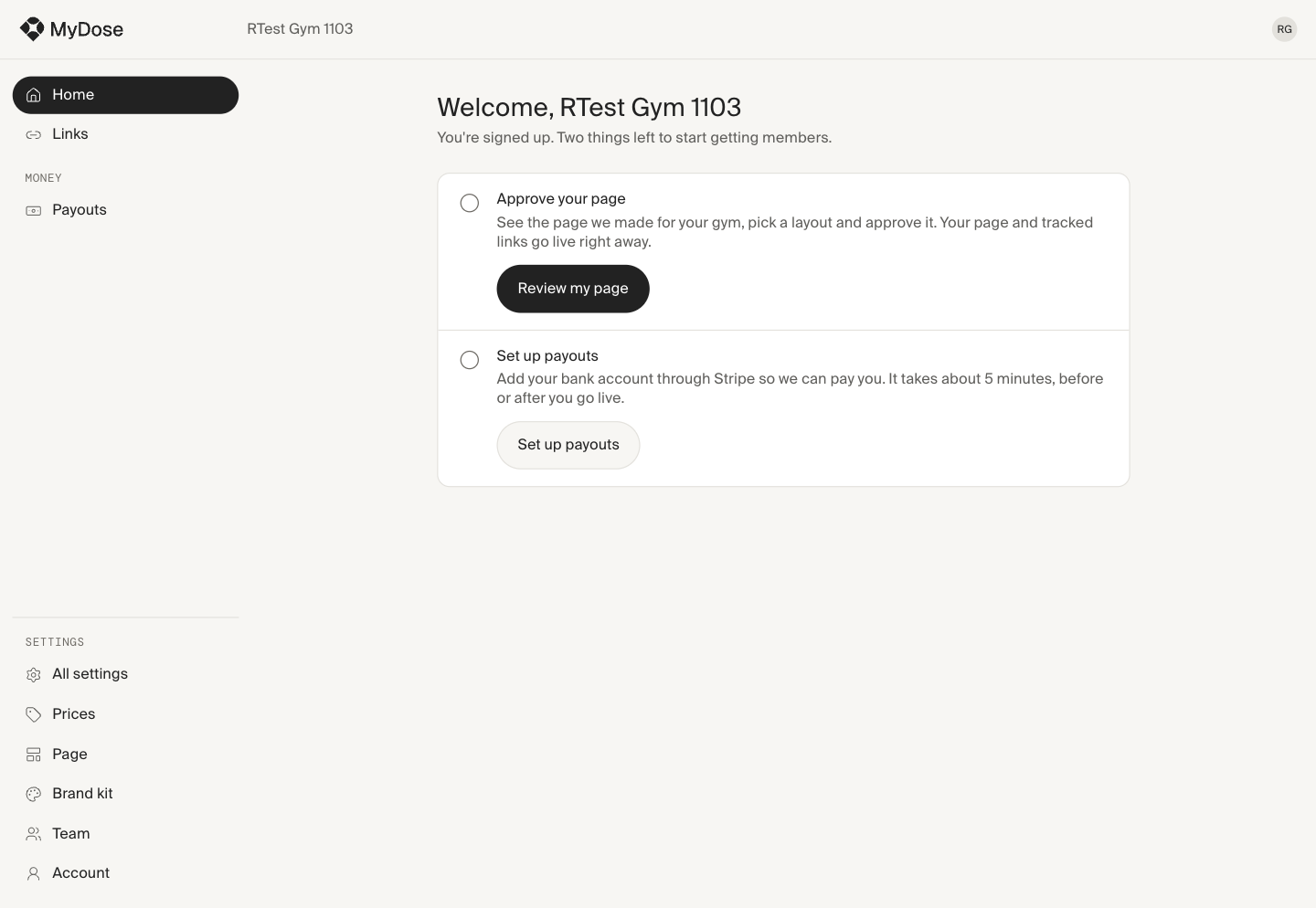
Create your account
Go to launch.mydose.ai/start. Enter your business details, pick your gym code, verify your email and accept the terms. You land on your dashboard. See Create your account.
You will see: a Home screen with a two-step checklist, Approve your page and Set up payouts.
Approve your page
On Home, select Approve your page. Pick Bold, Clean or Split, then approve. Your page and links go live. See Your page.
You will see: a live preview of your page beside the layout choices.
Set up payouts
Select Set up payouts on Home, or open Payouts. Add your bank account through Stripe. See Connect payouts.
You will see: the Payout account card change from Not connected to Connected.
Create your links
Open Links. In New link, choose where it goes and give it a name such as Front desk. Select Create link. See Links, QR codes and assets.
You will see: the link in the table with a QR code, a click count, Copy, QR downloads and Archive.
Share it
Print the QR code for your front desk, send one email and make one post. See Front desk script and Your first 10 members.
Watch your numbers
Home shows link clicks, enrollments, enrollments awaiting provider review and active members. See Members and active protocols.
What happens next
Earnings show on Payouts. See Your Payouts page.
Common problems
| Problem | Fix |
|---|---|
| No verification code | Check spam, then request a new one. See Troubleshooting |
| Page looks wrong | Settings > Page, then Re-import logo and colors |
| QR code will not scan | Download the 1200 by 1200 PNG and print it larger |
Need help? Email support@mydose.ai. Do not send member information by email.